
To clean up a Boolean in Blender so the cut becomes quads, apply the Boolean, select the n-gons with Select All by Trait > Faces by Sides, triangulate them (Ctrl+T), then select all and press Alt+J with both angles set to 180. On my test cube that took the topology from 88% to 98.3% quads, with no n-gons left and the grid kept. Alt+J and Merge by Distance on their own change nothing, and Limited Dissolve on the whole mesh wipes out the grid. No built-in tool got to 100% quads: each one either left a few n-gons or triangles, or rebuilt the whole mesh.
I tested every result below in Blender 4.2.23 and 5.2.2 with headless runs, and both versions gave identical numbers. In Blender 5.2 the operator is called Triangles to Quads, in 4.2 Tris to Quads: same tool, same Alt+J. On a Mac, Ctrl and Alt are the Control and Option keys.
What a Boolean leaves behind
The test mesh is a 2 m cube with an 8 by 8 quad grid on each side, 384 faces in all. A cylinder with 32 sides and a radius of 0.55 m, turned slightly, cuts a hole through it with a Boolean Difference, and the modifier is applied.
The result has 408 faces: 360 quads, 40 n-gons and 8 triangles, so 88.2% quads. Exact, Fast (4.2), Float and Manifold (5.2) all gave exactly the same mesh. The n-gons have 6, 7 or 8 sides and ring the hole: 24 on the top and bottom, 16 on the wall. The 8 triangles are tiny slivers right next to the rim, where an edge of the cutter lands very close to a grid line.
In the renders in this guide, grey faces are quads, orange faces are n-gons and red faces are triangles.
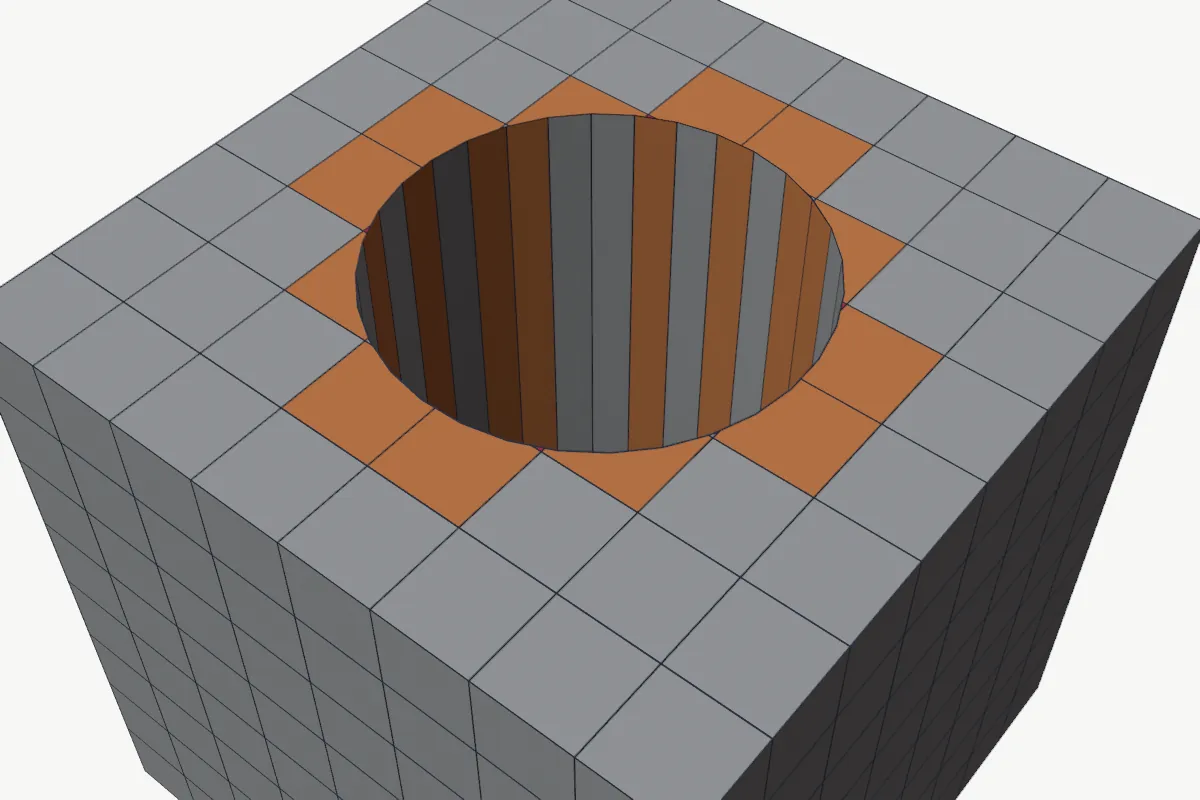
The n-gons appear because a Boolean only cuts. Wherever the cutter's outline crosses a grid face, Blender splits that face along the cut and keeps whatever polygon is left, without adding edges to turn it into quads. That is fine for rendering a flat panel, but it shades badly under Subdivision Surface, bevels unevenly, and stops the edge loops you try to add next to the hole. If you want the general background on n-gons, read how to convert n-gons and tris to quads.
Find the faces that are not quads
- Select the object, press
Tabfor Edit Mode and3for face select mode. - Choose Select > Select All by Trait > Faces by Sides.
- In the Adjust Last Operation panel set Number of Vertices to 4 and Type to Not Equal To.
On the test cube this selects 48 faces. Greater Than 4 selects the 40 n-gons and Less Than 4 selects the 8 sliver triangles. Turn on Overlays > Statistics to see the counts while you work.
Do Merge by Distance and Alt+J fix Boolean n-gons?
Merge by Distance (Mesh > Clean Up, or M > By Distance) at its default distance of 0.0001 m removed 0 vertices. A Boolean welds its own cut, so there are no split vertices to close. It is still a safe first step on imported meshes, but it does not touch the n-gons.
Tris to Quads (Alt+J, also in the Face menu, Ctrl+F) changed nothing, both at the default angles of 40/40 and at the maximum of 180/180. It only joins pairs of triangles. The 8 slivers have no matching triangle next to them, and the 40 n-gons are not triangles, so it has nothing to work with.
Limited Dissolve: where it helps and where it hurts
Limited Dissolve (Mesh > Clean Up, or X > Limited Dissolve) removes edges between faces that lie flatter than its angle, 5 degrees by default. What it does to your mesh depends entirely on what you select.
On the whole mesh: the grid is gone
With every face selected, Limited Dissolve dissolved each flat side of the cube into one face. The mesh went from 408 faces to 40, with 9 n-gons left (one of them 38-sided) and 77.5% quads. All 280 grid faces far from the hole changed. The triangles are gone, but so is every edge loop you had.
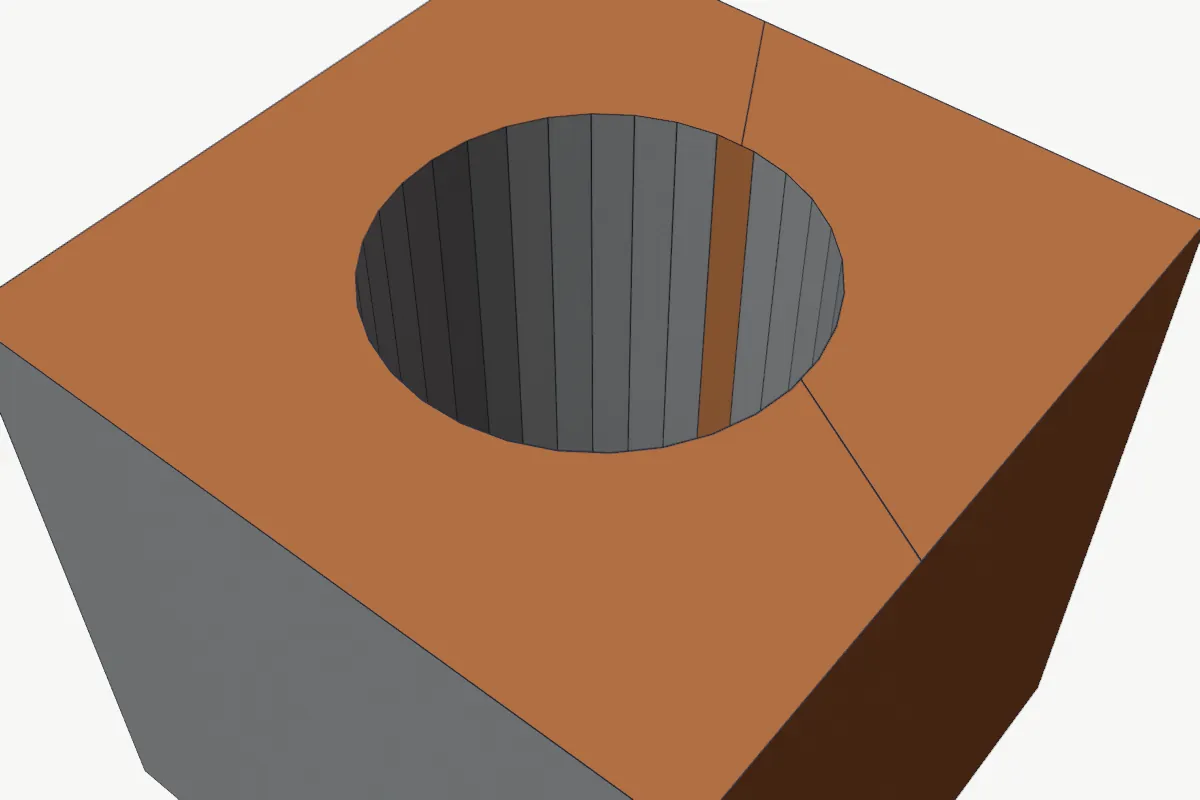
Adding Alt+J, then triangulating the n-gons and Alt+J again, does not bring the grid back. At default angles that route ended at 122 faces with 84 triangles (31.1% quads). With the last Alt+J at 180/180 it ended at 86 faces with 12 triangles (86.0%). Both are worse than doing nothing, if you care about the grid.
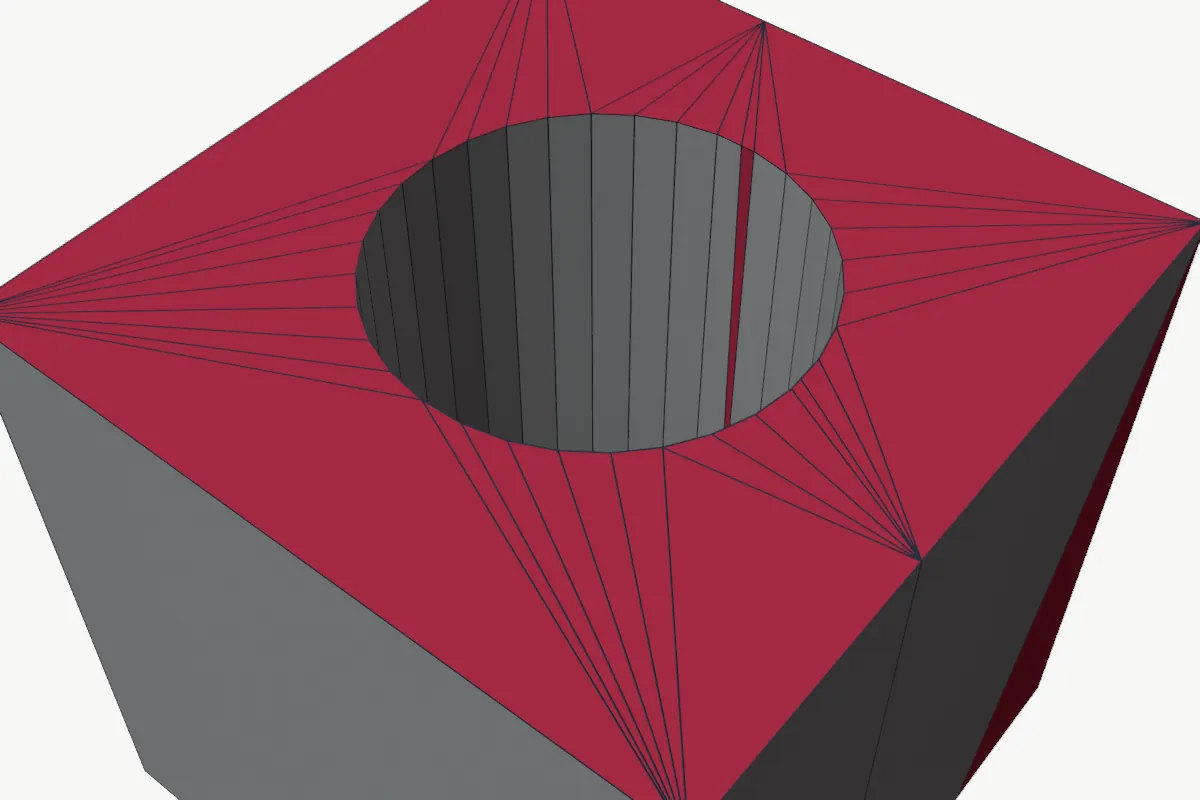
On the cut faces only: close, but n-gons stay
Select only the faces the cut made or changed before you dissolve. On the test cube that is 72 faces: the 48 non-quads plus the 24 quads the cutter sliced along the wall. Limited Dissolve then gave 372 faces, 0 triangles, 8 n-gons and 97.8% quads. No face away from the hole changed, and 353 of the 408 faces were untouched.
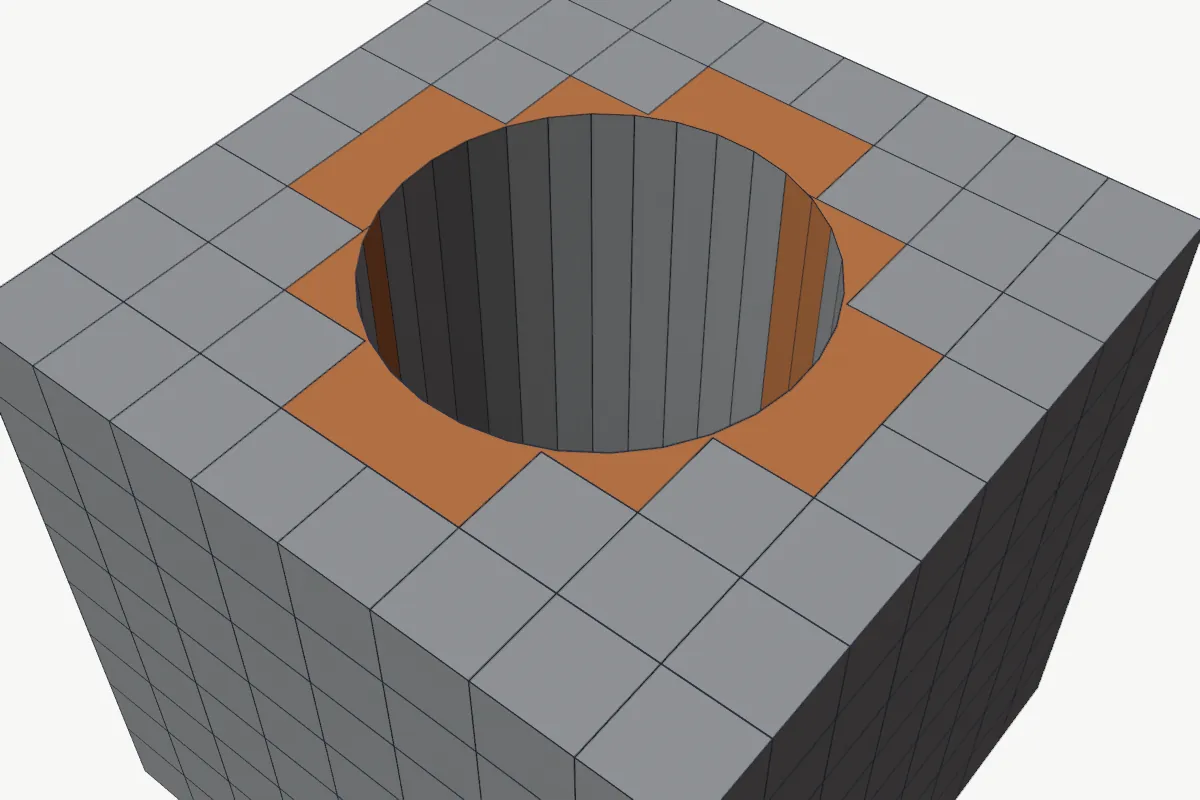
The catch: the faces next to the hole merge into 8 n-gons, some of them very long (25, 37 and 54 sides). Fewer faces to fix, but each one is harder to cut by hand.
A simpler selection also works: run Limited Dissolve on just the 48 non-quads from Faces by Sides. That gave 384 faces, 0 triangles, 16 n-gons and 95.8% quads, with 368 faces untouched.
Growing the selection with Select More takes in more faces than the cut changed. I measured the exact cut faces, not a grown selection, so check the Statistics overlay if you try it.
How to turn Boolean n-gons into quads for free: triangulate, then Alt+J at 180
This route got the highest quad percentage of any built-in method that keeps the grid. It needs no long n-gons and no guessing. The n-gons guide calls triangulate-then-Alt+J a lazy route, and at the default 40/40 angles it is: here it stopped at 79.8%. The 180/180 pass in step 6 is what makes it work, at the cost of uneven quads.
- Apply the Boolean (the modifier's drop-down in the Modifier properties > Apply) and hide the cutter.
- In Edit Mode, optionally run Merge by Distance. On a clean Boolean it removes nothing, but it costs nothing either.
- Select only the n-gons: Select > Select All by Trait > Faces by Sides, 4, Greater Than.
- Press
Ctrl+T(Face > Triangulate Faces, Beauty for quads and n-gons). Every n-gon becomes triangles. - Press
Ato select the whole mesh, thenAlt+J. At the default angles this ended at 516 faces with 104 triangles (79.8% quads). - Press
Alt+Jonce more, open Adjust Last Operation and set Max Face Angle and Max Shape Angle to 180.
After the second pass the mesh had 468 faces: 460 quads, 8 triangles, 0 n-gons, 98.3%. None of the 280 grid faces far from the hole changed, and the hole kept its shape.
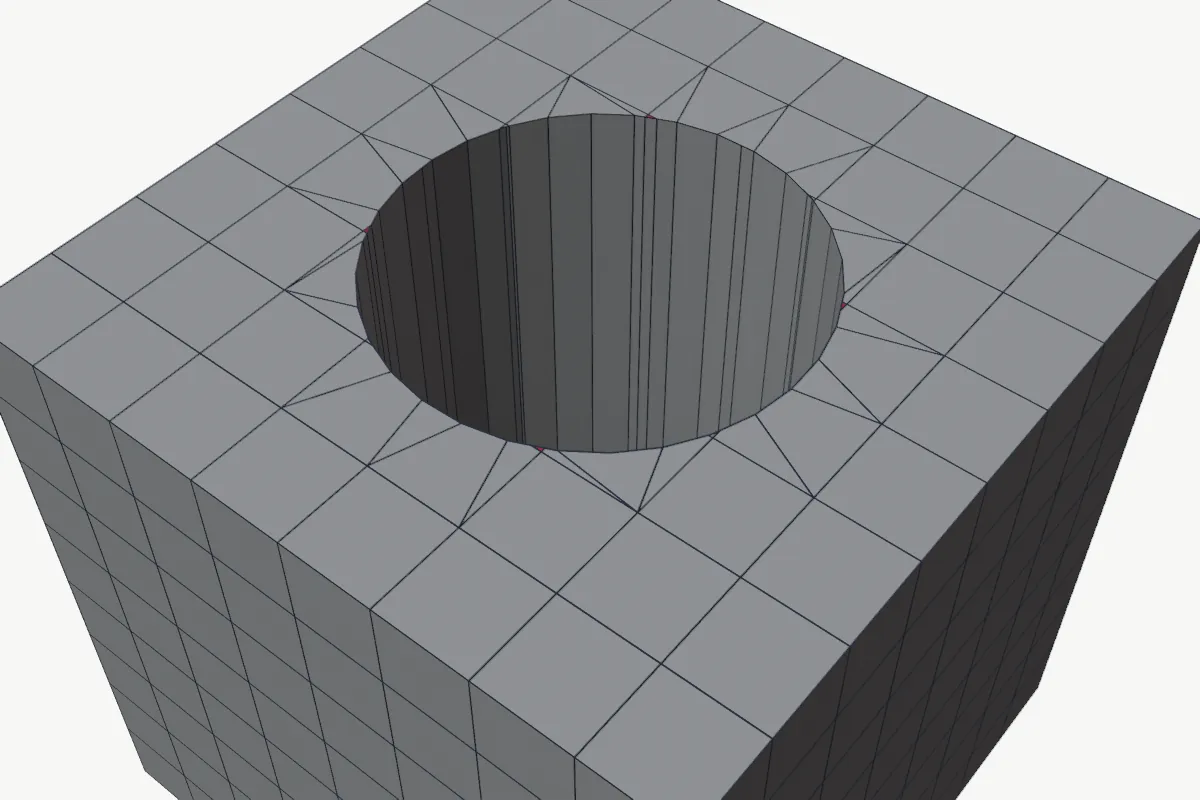
What is left: the 8 sliver triangles from the Boolean, which Alt+J cannot pair, and a ring of uneven quads, because 180 degrees accepts almost any shape as a quad. For a prop that will never be subdivided, this is often good enough. Where it is not, you fix the rim by hand: dissolve or slide the sliver vertices, and cut the worst quads with the Knife (K) or Connect Vertex Path (J). That last part is the slow part, and you repeat it on every cut.
Prevent part of it: match the cutter to the grid
You can reduce the mess before the cut by making the cutter's vertices land on grid lines. On the test cube the grid step is 0.25 m.
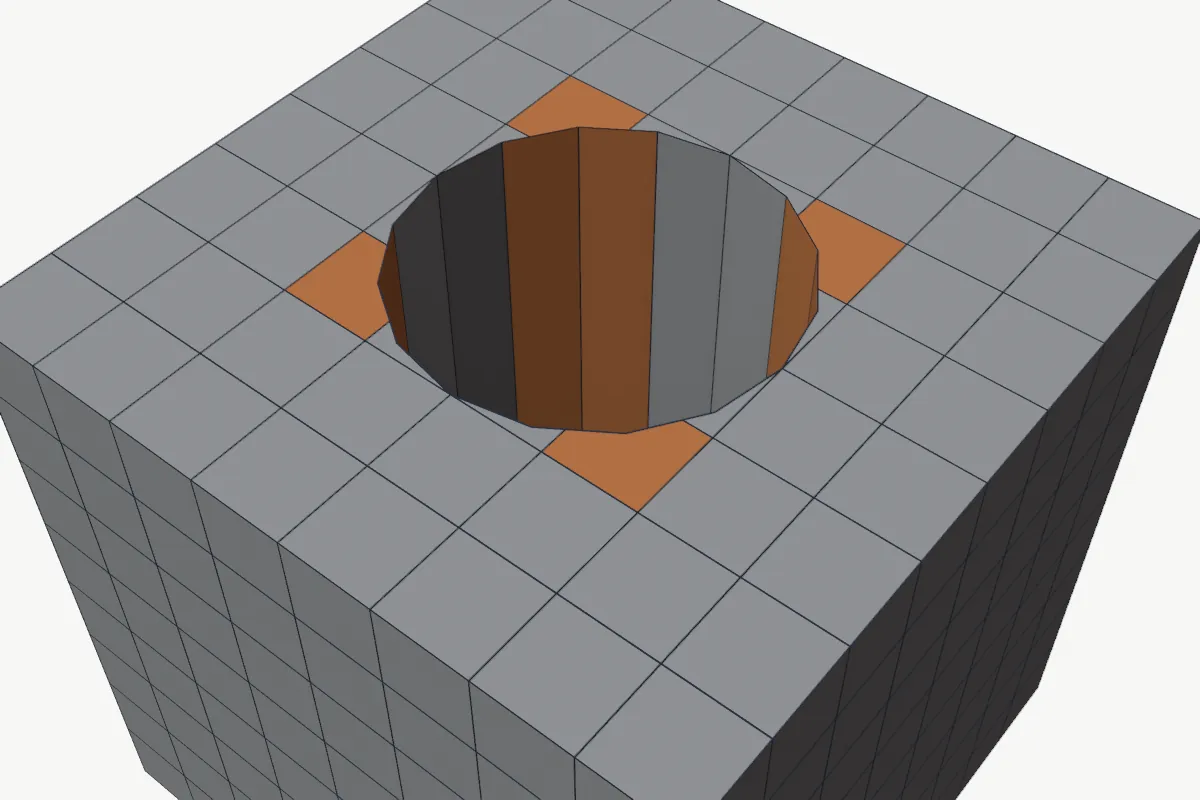
- A 16-sided cutter of radius 0.5 m, not turned, puts 4 of its corners exactly on grid vertices. The cut left 0 triangles and 16 n-gons: 95.9% quads. The price is a coarser hole, and a smaller one (0.5 m instead of 0.55 m).
- A 32-sided cutter of radius 0.5 m, not turned: 0 triangles, 32 n-gons, 92.2%.
- Fewer sides alone does not help. 16 or 8 sides at the original 0.55 m radius gave 86.7 to 87.8%, slightly worse than the 32-sided cut.
Matching the cutter helps, but in no case did it reach 0 n-gons. Treat it as a way to start from a cleaner cut, not a fix. Support loops around the hole are another common habit; I did not measure them, so I cannot give numbers for them.
Why not just remesh?
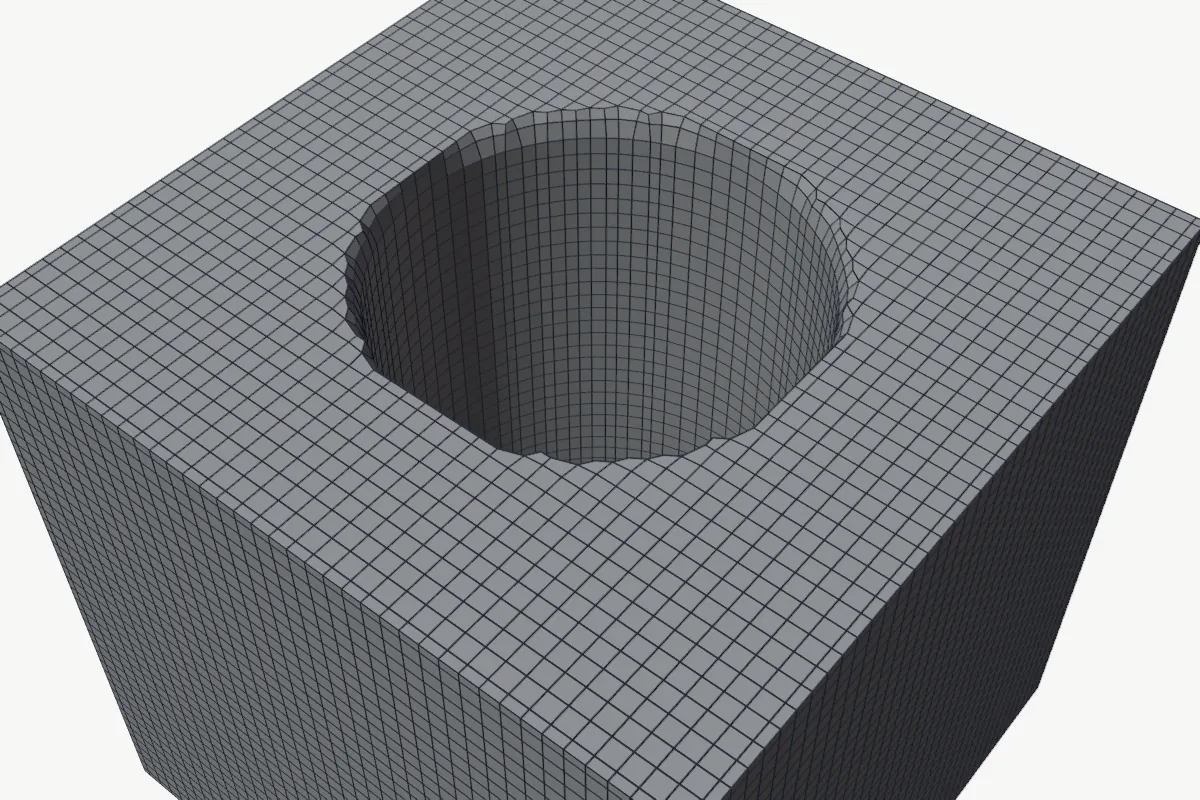
The Remesh modifier (Voxel or Sharp mode) and QuadriFlow (Properties > Object Data > Remesh) do return 100% quads. They also rebuild the whole mesh. For scale, the applied Boolean itself is up to 0.0026 m off at the rim, because the cutter has 32 sides:
| Remesh | Faces | Hole rim off by up to | Surface moved up to |
|---|---|---|---|
| Remesh modifier, Voxel 0.1 m | 3,376 | 0.025 m | 0.055 m |
| Remesh modifier, Voxel 0.05 m | 12,784 | 0.014 m | 0.026 m |
| Remesh modifier, Voxel 0.025 m | 50,304 | 0.0086 m | 0.015 m |
| Remesh modifier, Sharp, depth 6 | 25,000 | 0.0027 m | 0.0016 m |
| QuadriFlow, default 4,000 target | 3,954 | 0.055 m | 0.045 m |
None of the original 408 faces survived, and the grid is replaced by a dense uniform one. Only Sharp mode kept the hole as exact as the Boolean, and it needed 25,000 faces to do it. That suits a sculpting base, not a hard-surface part where you want your loops and an exact hole.
Free: QuadFix Lite
QuadFix Lite is our free, open-source add-on. It works in Edit Mode on a selection, after you applied the Boolean yourself.
- Apply the Boolean and press
Tabfor Edit Mode. - Select the faces to clean. In my test I selected the whole mesh.
- Open the QuadFix Lite panel in the sidebar (
N) and press Clean & Quad with the default settings.
The report line read verts 464→393, quads 360→367, tris 8→40, n-gons 40→4. The result: 411 faces, 367 quads, 40 triangles, 4 n-gons, 89.3% quads. The grid away from the hole was not touched.
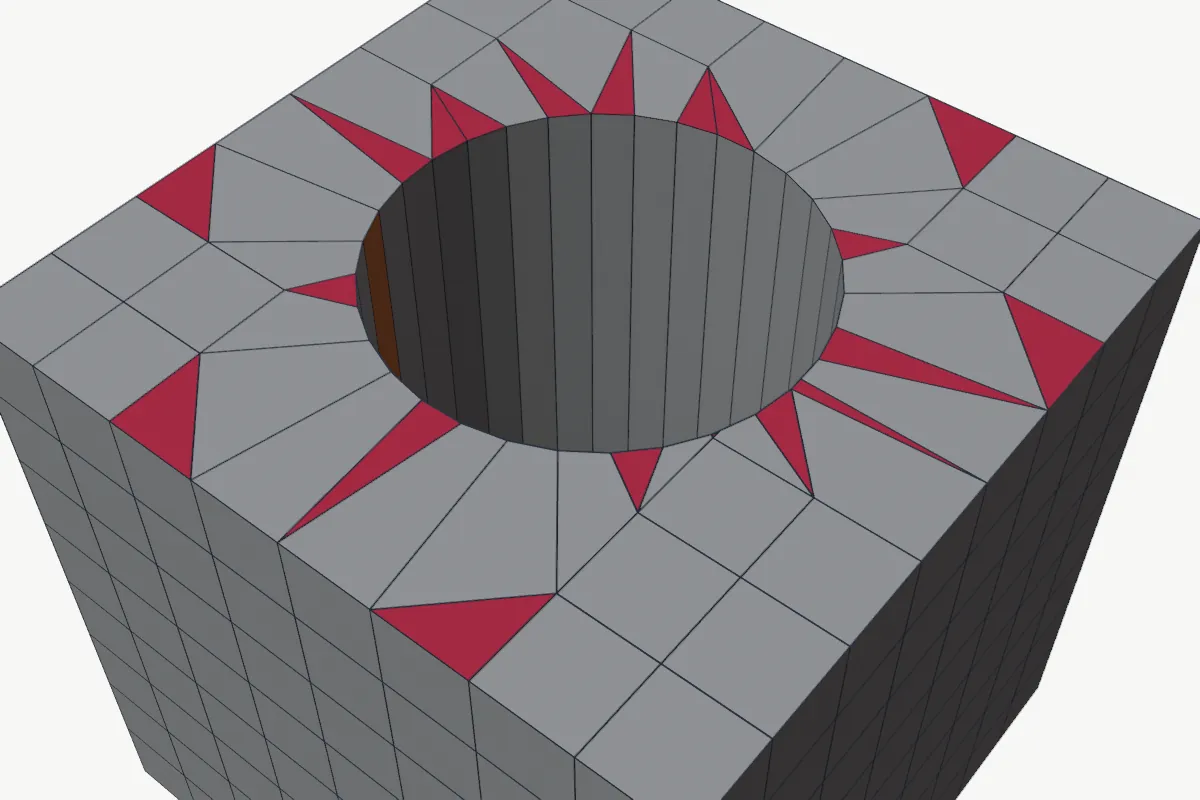
So Lite clears almost all the n-gons in one click, but it cuts them into triangle fans around the hole rather than quads. The 4 n-gons left are flat ones, kept on purpose by its default Keep Planar N-gons. With that option off, all n-gons went and 44 triangles stayed. Lite is a good free cleanup when you care about getting rid of n-gons and can live with triangles. The full QuadFix ($12) uses the same Clean & Quad, so on a Boolean it gives this same result; buy it for hole filling and bridging, not for this job.
One click: CleanQuad
CleanQuad is our $5 add-on for exactly this job. You leave the Boolean modifier live, select the object in Object Mode and press Clean Boolean to Quads.
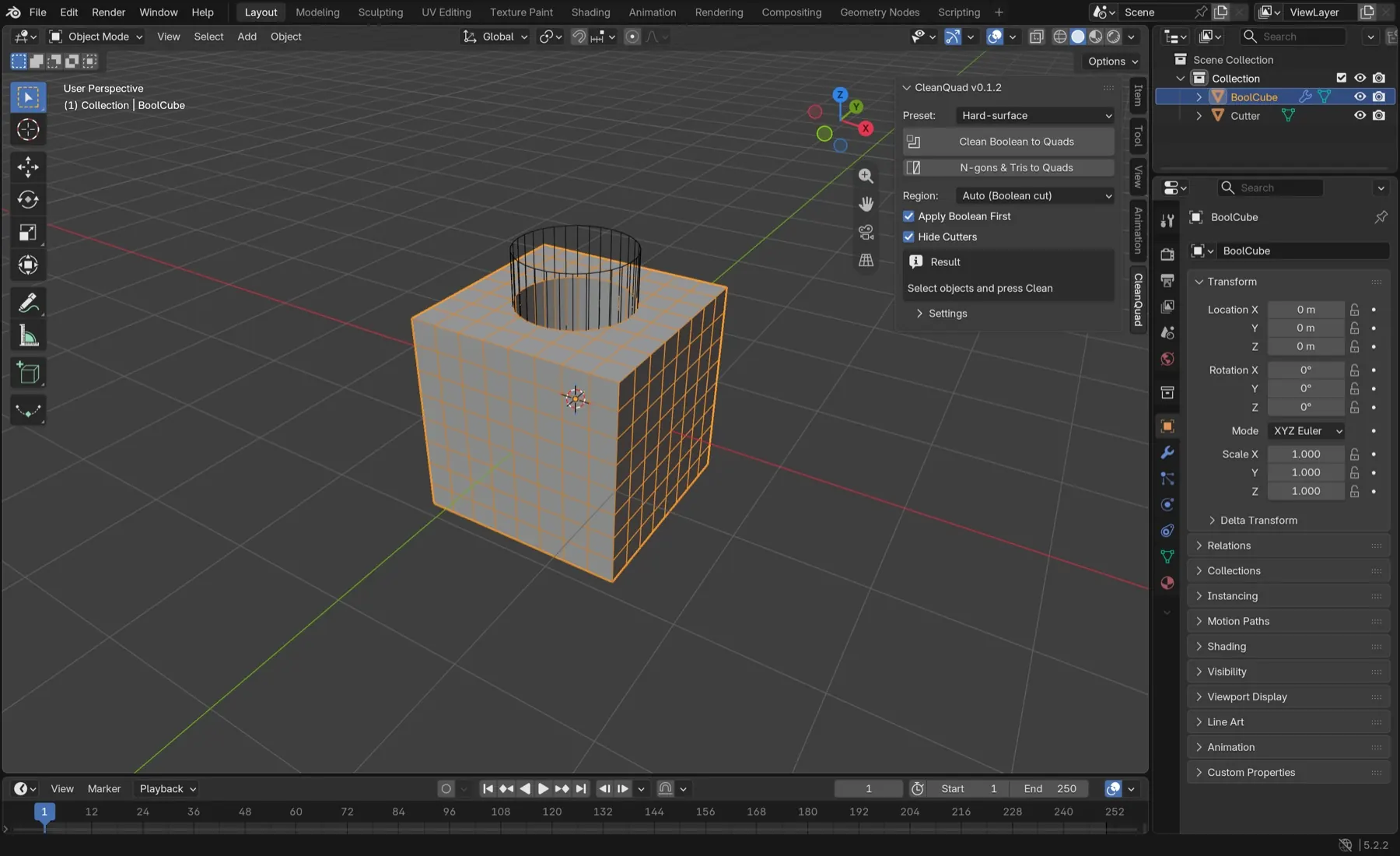
What happens in that one click:
- It applies the Boolean for you and hides the cutter.
- It reads the cut from the cutter, so you select nothing. Only the cut and the faces around it are cleaned, and the rest of the mesh is left alone.
- It adds a few faces where quads need them. The face count went from 408 to 448.
- The whole run is one undo step:
Ctrl+Zbrings back the live Boolean and the cutter.
On the test cube with the default Hard-surface preset the report read quads 88% → 100% (360→448), n-gons 40→0, tris 8→0, 1 Boolean stack applied. That is 448 quads, 0 triangles, 0 n-gons. 344 of the 408 faces were untouched, none of the far grid faces changed, the surface moved by less than 0.00001 m, and the rim sits exactly on the cutter's radius.
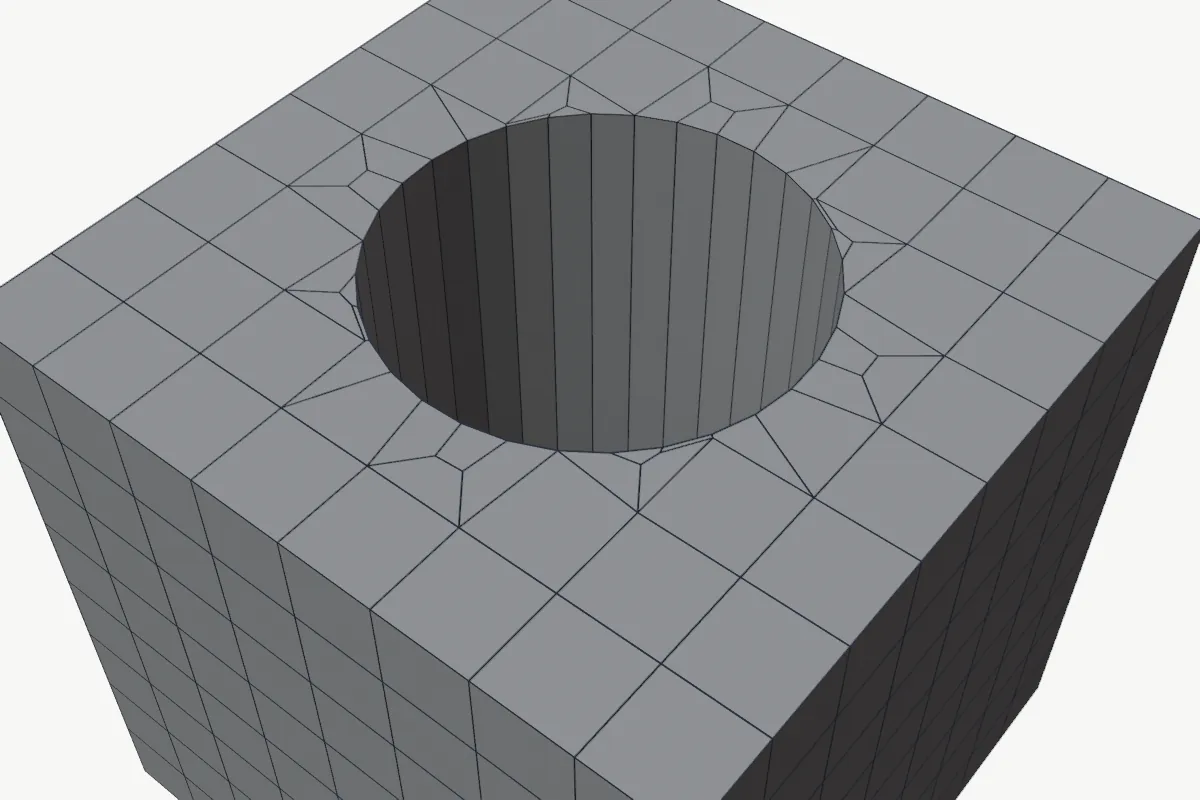
It also has Organic and Import / CAD presets, an Edit Mode mode that cleans only your face selection, and Batch: select many objects and clean them all in one click. Modifiers below the Boolean stay in the stack. An object with shape keys and a live Boolean is skipped, because Blender cannot apply a modifier to it. It needs Blender 4.2 or newer and works on Windows, macOS and Linux. The CleanQuad manual covers every setting, and the workflows page shows which preset to use when.
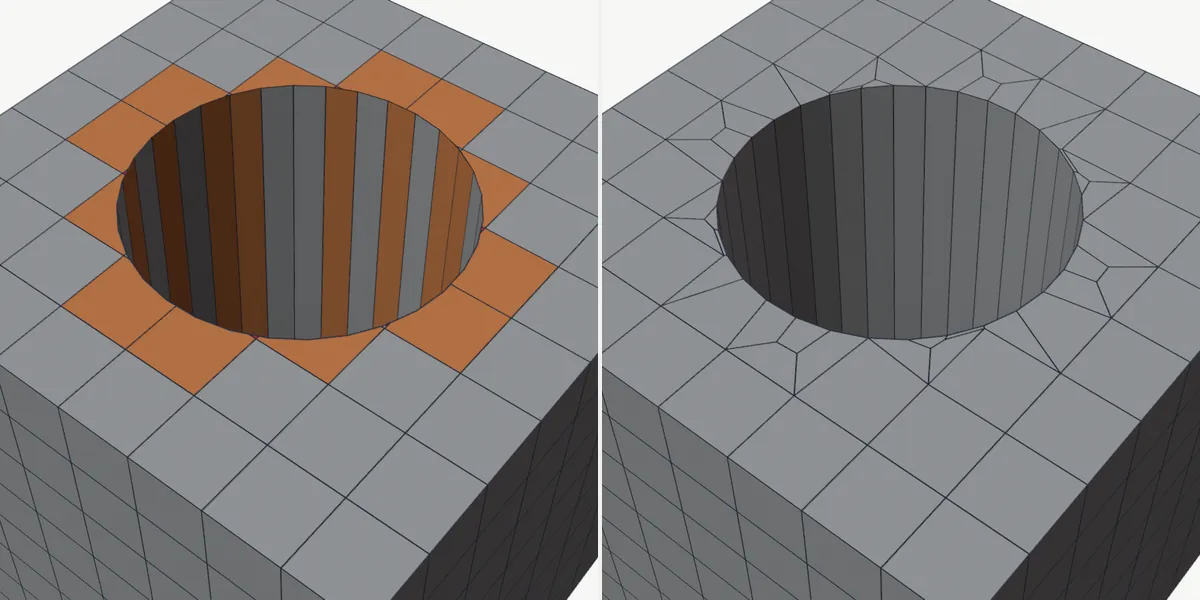
Is it worth $5 when the free manual route gets to 98%? If you cut one hole a month, probably not: the triangulate and Alt+J route above is good, and now you know where it stops. If you cut panels, vents and holes every day, the time goes into the selection and the rim fix-up on every cut, and that is the part CleanQuad removes. If you mainly fill holes or bridge loops, look at QuadFix instead; its Boolean cleanup is the same Clean & Quad as Lite above, with triangles left at the rim.
All methods compared
The same test cube, 88.2% quads after the Boolean.
| Method | Quads | Keeps the grid? | Keeps the hole shape? |
|---|---|---|---|
| Boolean applied, no cleanup | 88.2% | Yes | Yes |
Merge by Distance, or Alt+J at any angle | 88.2% | Yes (nothing changes) | Yes |
| Limited Dissolve, whole mesh | 77.5% | No | Yes |
Limited Dissolve, then triangulate and Alt+J 180/180 | 86.0% | No | Yes |
| Limited Dissolve, 48 non-quads selected | 95.8% | Yes | Yes |
| Limited Dissolve, 72 cut faces picked by hand | 97.8% | Mostly, 8 long n-gons by the hole | Yes |
Triangulate n-gons, Alt+J 180/180 | 98.3% | Yes, uneven quads at the rim | Yes |
| 16-sided cutter matched to the grid | 95.9% | Yes | Coarser hole |
| Voxel Remesh | 100% | No, new dense grid | No, rim softened |
| QuadriFlow | 100% | No, new grid | No, rim off up to 0.055 m |
| QuadFix Lite, Clean & Quad | 89.3% | Yes | Yes |
| CleanQuad, one click | 100% | Yes | Yes, exact |
FAQ
Why does a Boolean make n-gons in Blender?
A Boolean cuts the faces the cutter crosses and keeps whatever shape is left. It does not add edges to turn those pieces into quads. Where the cutter's edges land close to a grid line, it also leaves thin sliver triangles. The solver does not change this: Exact, Fast, Float and Manifold gave the same 40 n-gons and 8 triangles on the test cube.
Does Alt+J fix Boolean n-gons?
No. Alt+J only joins pairs of triangles. On the test cube it changed nothing at 40/40 or at 180/180. It works only after you triangulate the n-gons with Ctrl+T, and then it reached 98.3% at 180/180.
Should I just remesh after a Boolean?
Only if you are sculpting. Remesh and QuadriFlow give all quads, but they replace every face and multiply the face count, and at sane face counts they round off the hole. For a hard-surface model, clean only the cut.
Is there a free way to get all quads after a Boolean?
Not with the built-in tools in my tests. The closest free route is triangulate plus Alt+J at 180/180 (98.3%, 8 triangles left). Limited Dissolve on a hand-picked selection of the cut faces reached 97.8% but left 8 long n-gons; on the 48 non-quads that Faces by Sides selects it reached 95.8%. The free QuadFix Lite removes the n-gons but leaves triangles. For filling openings with quads, see how to fill a hole with quads.
Related guides
- How to convert n-gons and tris to quads in Blender
- How to fill a hole with quads in Blender
- How to clean up an imported STL or OBJ mesh in Blender
Tested by Pavel at Mendbox Studio on Blender 4.2.23 and 5.2.2.