
CleanQuad workflows: step-by-step recipes
Each workflow uses the controls exactly as they are named in the CleanQuad sidebar tab. Open it with N. Every option is explained in the panel reference. After every run, read the Result box, and use Ctrl+Z (Cmd+Z on a Mac) if you do not like the result: one undo takes back the whole run.
Clean up a Boolean on a grid
This is the main case: a hard-surface object with a grid of quads, cut with a Boolean.
- Add the Boolean: select the object, Add Modifier > Generate > Boolean, and pick the cutter object. A Boolean add-on that adds a standard Boolean modifier works too. Leave the modifier live. If CleanQuad applies the Boolean itself, it knows the cutter and touches only the cut.
- In Object Mode click the object to select it.
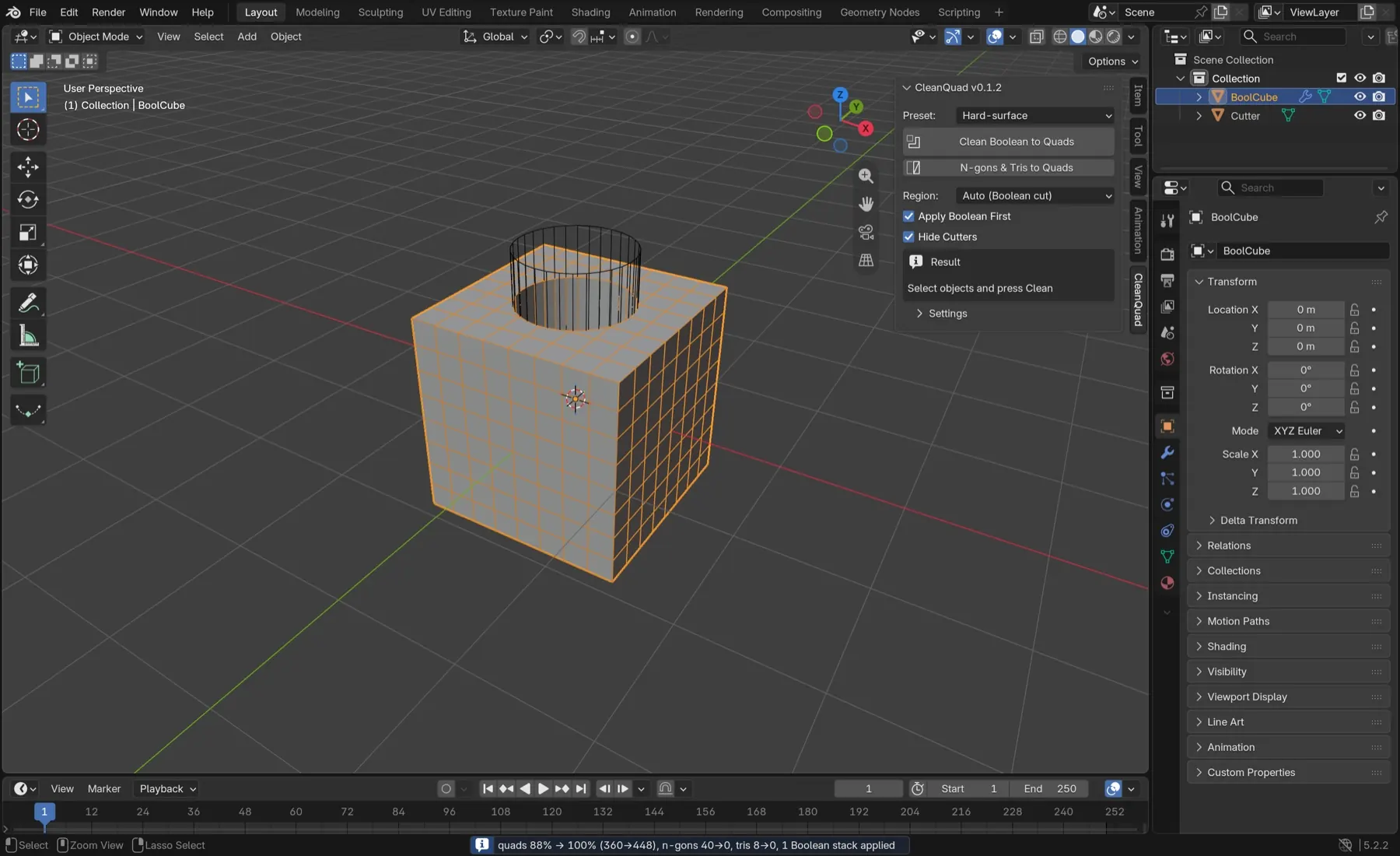
- In the CleanQuad tab keep Preset on Hard-surface and Region on Auto (Boolean cut).
- Press Clean Boolean to Quads.
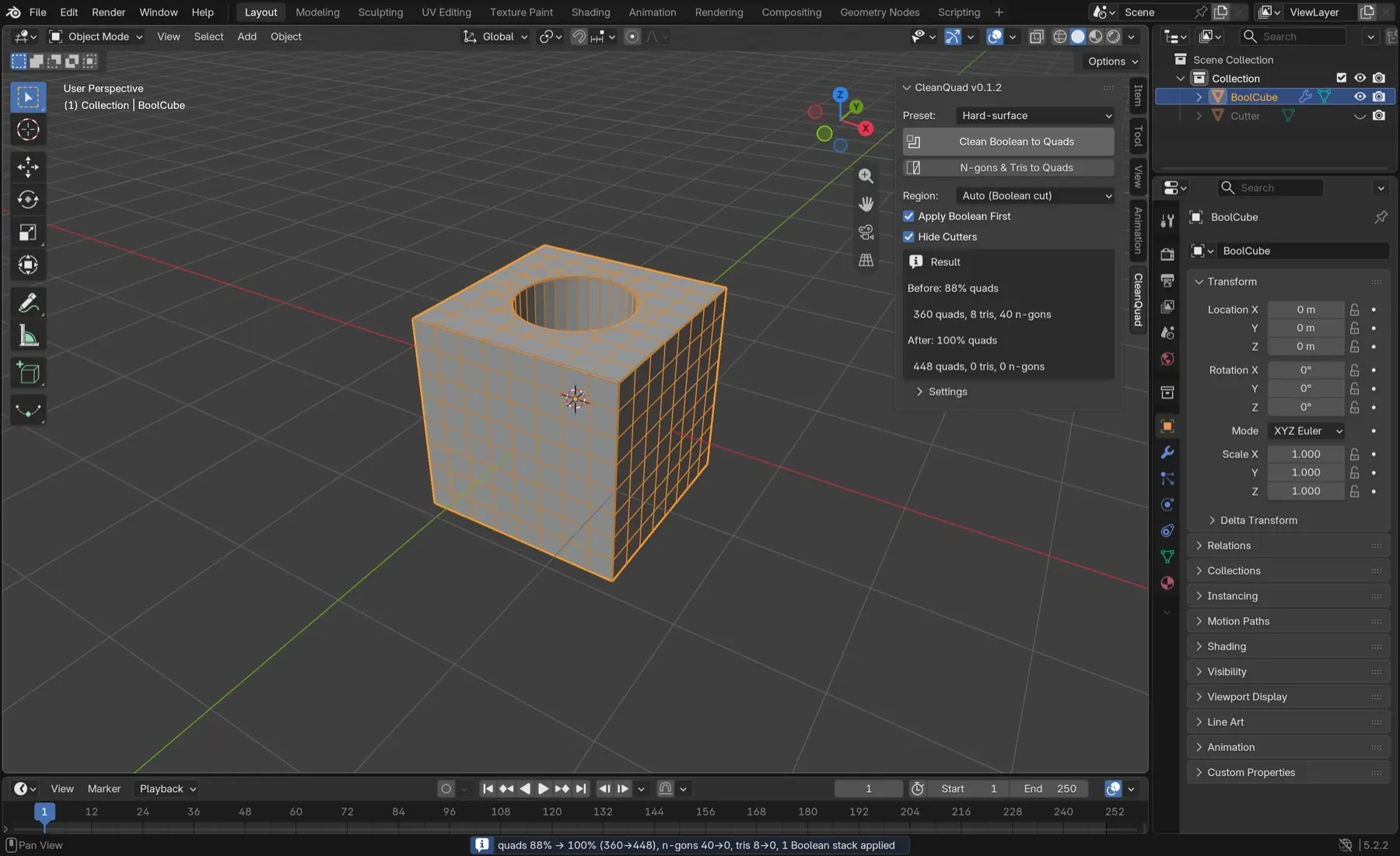
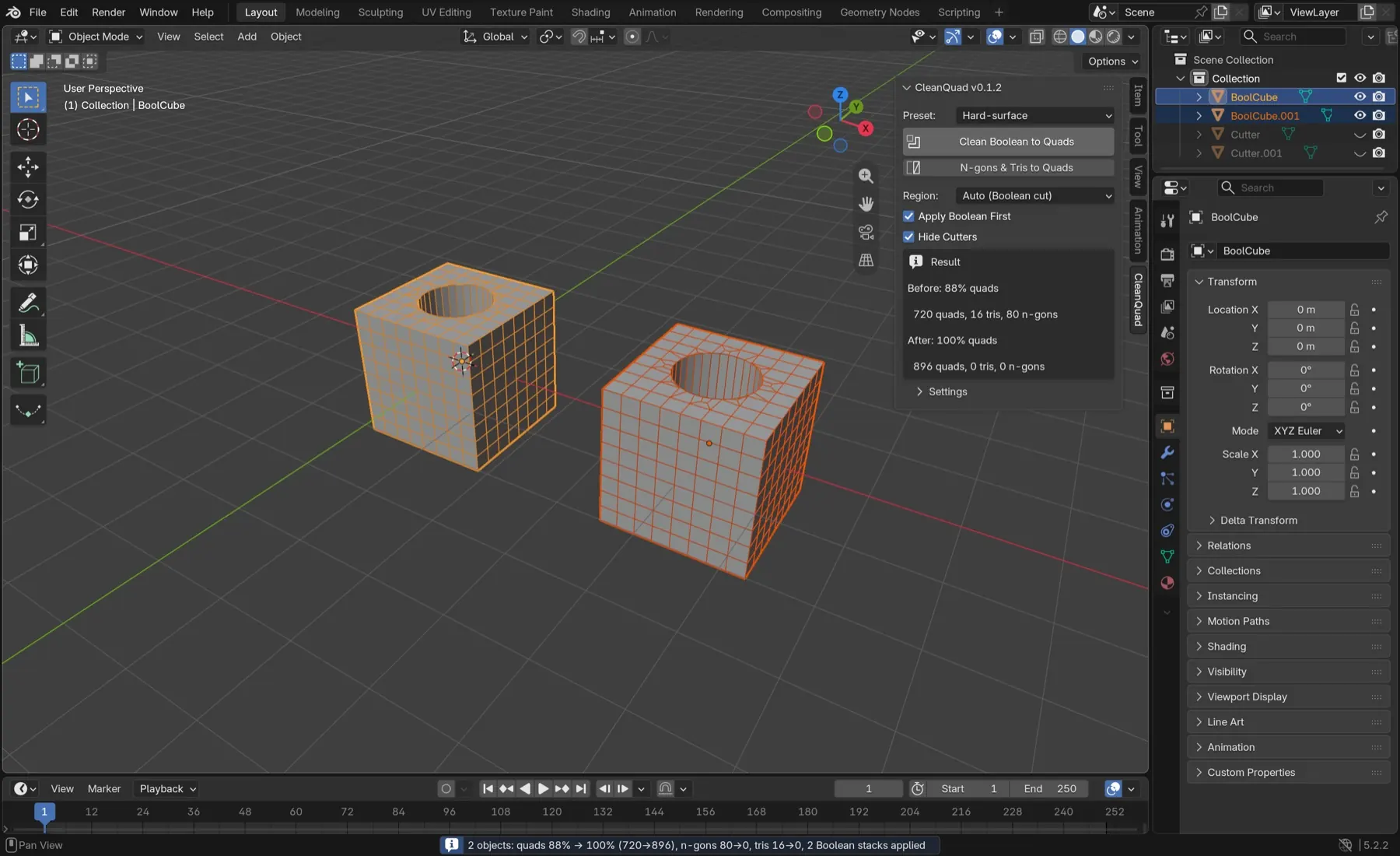
- Read the Result box. On the test cube it says
Before: 88% quadsandAfter: 100% quads.
You get all quads where the cut is flat and the grid is about as coarse as the cutter's segments. A 32-segment cylinder through a 10 x 10 grid face is the sweet spot: 100%. If the grid is much finer than the cutter, so that several grid lines end at one corner of the cut, a few thin triangles stay there. Use a cutter with more segments, or a coarser grid near the cut.
The Exact, Fast and Manifold Boolean solvers all work: the test cube ends at 100% quads with each. Collections as Boolean operands work too: every mesh in the collection counts as a cutter. A cutter with its own modifiers (Bevel, Array, Solidify) is fine, because the cut is read from what those modifiers give.
Several Booleans on one object
A hole, a notch and a boss on the same part, each with its own Boolean modifier: one click applies the whole stack and cleans every cut. On the test cube with three Booleans the quads went from 83% to 99%, with 4 triangles left.
If the Boolean is not the first modifier, the modifiers above it are applied with it. Modifiers below the last Boolean stay in the stack and stay on, for example a Bevel you put after the Boolean.
Keep the Boolean live and clean the rest
Sometimes you want to keep one Boolean editable and only clean other objects in the selection.
- Turn off Apply Boolean First.
- Select all the objects and press Clean Boolean to Quads.
- Objects with a live Boolean are left exactly as they are, mesh and modifier. The other objects are cleaned. The status bar says how many were left, for example 1 object with a live Boolean left as it is; turn on Apply Boolean First.
If the only selected object has a live Boolean and Apply Boolean First is off, nothing is done and the run is cancelled with that warning.
Clean only part of a mesh in Edit Mode
Use Edit Mode when you want to choose the faces yourself: one part of a cut, a Boolean you applied long ago, or a region of an imported mesh.
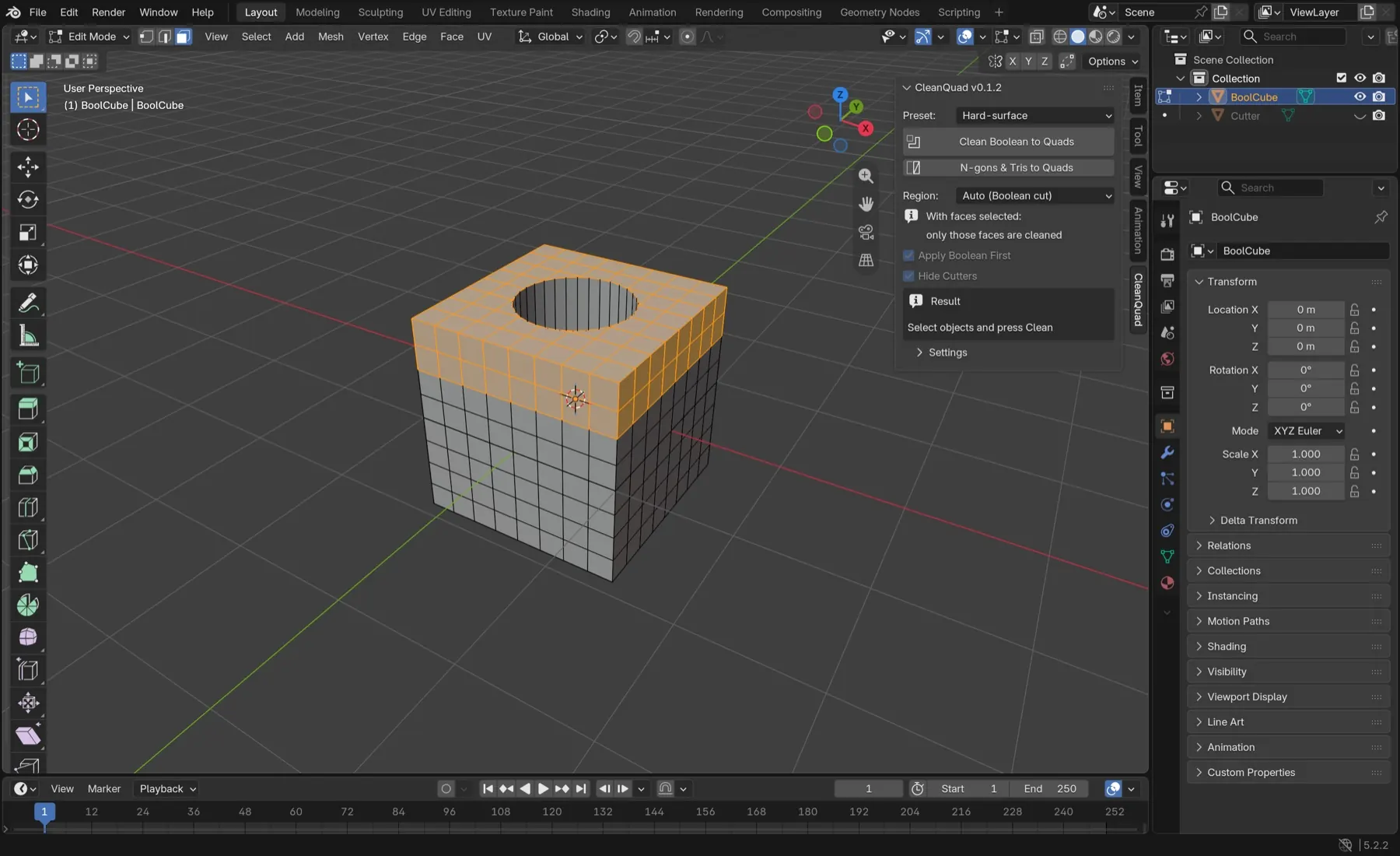
- Select the object and press
Tabfor Edit Mode. - Switch to face select mode (
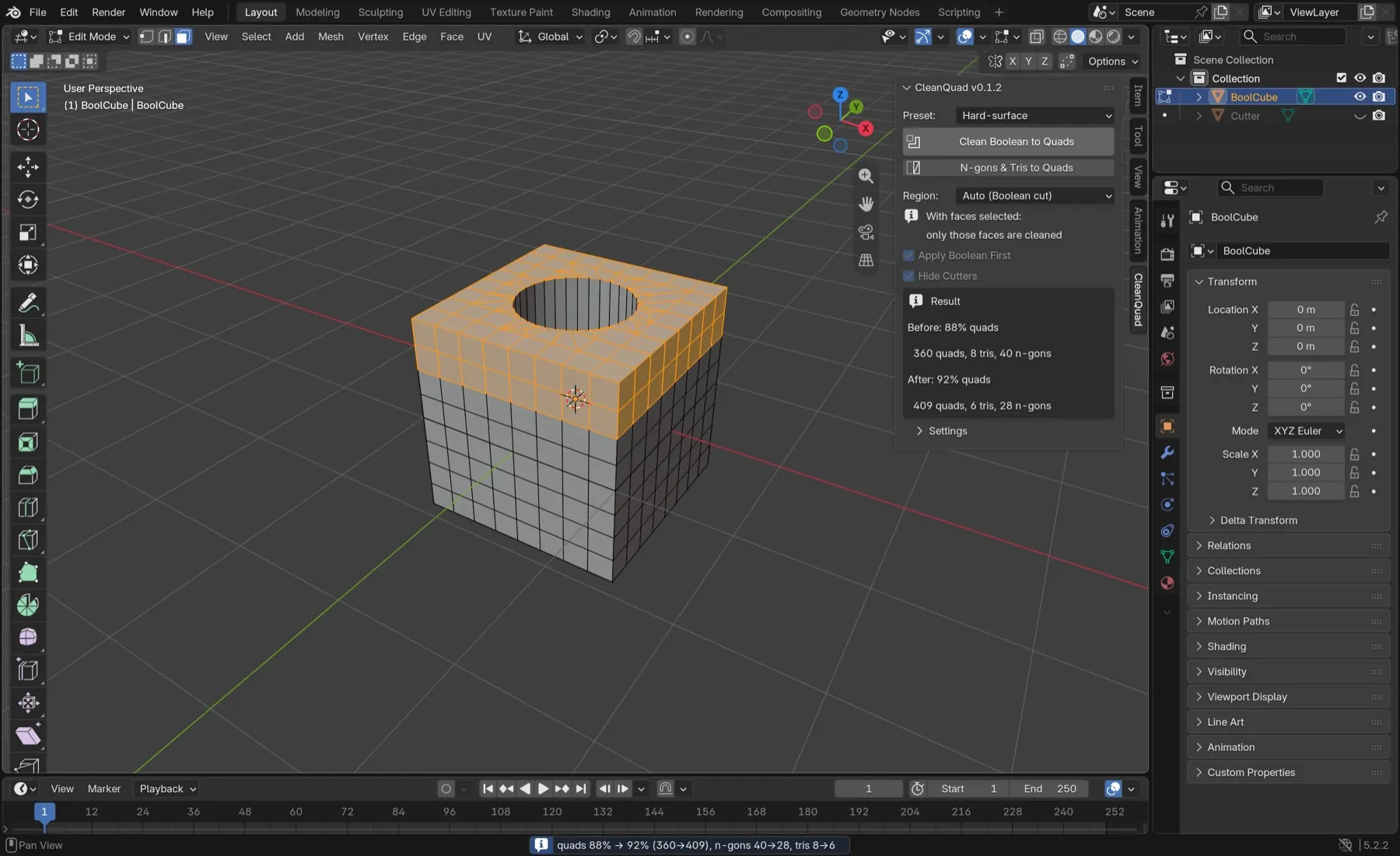
3) and select the faces to clean. In Edit Mode there is no cutter to read the cut from, so select the faces along the cut plus one ring around them. - Press Clean Boolean to Quads, or N-gons & Tris to Quads if you only want n-gons split and triangles joined.
- Only the selected faces change. They stay selected, so you can run again with other settings or keep working on them.
Good to know:
- A live Boolean modifier is not applied in Edit Mode. The report says live Boolean modifiers are applied in Object Mode only. Go to Object Mode and run again if you want CleanQuad to apply and clean the cut.
- Apply Boolean First and Hide Cutters are greyed out in Edit Mode.
- With nothing selected, Region Auto takes every triangle and n-gon, and Whole Mesh takes all visible faces.
- Several objects in Edit Mode at once (multi-object editing) are all cleaned.
- Undo works as usual: one
Ctrl+Zrestores the selection and the mesh.
Clean many objects at once
- In Object Mode select every object you want cleaned. A box select over the whole set is fine.
- Press Clean Boolean to Quads once.
- Every selected mesh is cleaned, and the Result box shows the sum of all of them.
In the test scene, three Boolean cubes and a messy triangulated sphere were cleaned in one click: 4 objects: quads 49% → 99% (1080→1819), n-gons 120→0, tris 984→10, 3 Boolean stacks applied. One undo restored all four.
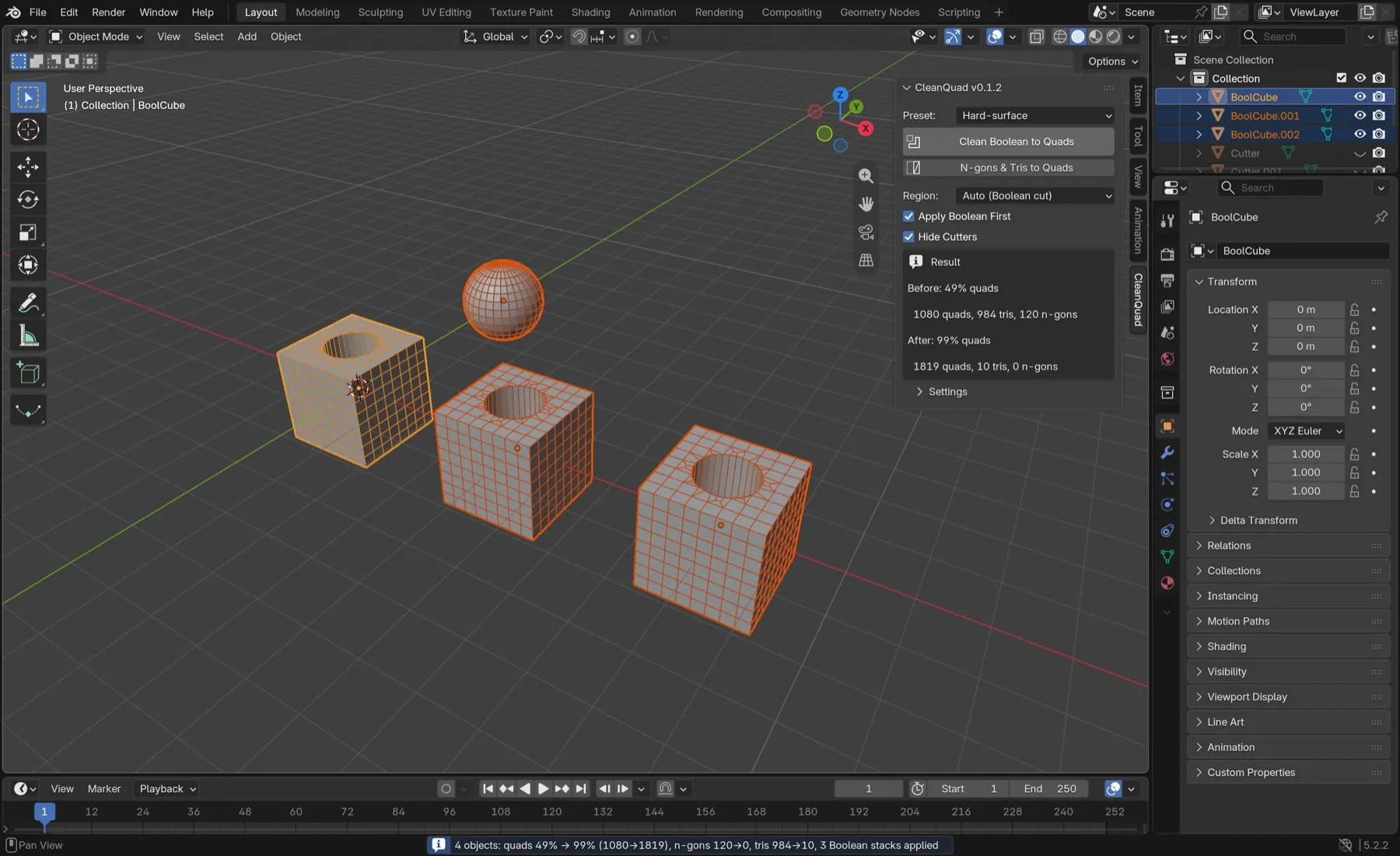
The rules of a batch run:
- Cutters selected together with their target are skipped; they are not cleaned themselves.
- Hidden objects, curves, text, empties and other non-mesh objects are never touched.
- Linked duplicates (
Alt+D) without modifiers share one mesh, and it is cleaned once. A linked duplicate whose Boolean is applied gets a mesh of its own; its siblings keep the old one. - Objects linked from another .blend file are skipped (linked from another file).
- Objects with shape keys and a live Boolean are skipped, because Blender cannot apply a modifier to them.
CAD exports: STEP, STL and OBJ
An export from CAD software has no live Boolean, often has split vertices, and its flat faces are fan-triangulated or big n-gon caps.
- Pick the Import / CAD preset.
- Set Region to Whole Mesh.
- Press Clean Boolean to Quads.
The bigger merge distance closes the split vertices, and Dissolve Angle 3° removes the fan triangles on flat faces before the quads are built. A CAD-like test part with n-gon caps went from 78% to 95% quads, with 4 triangles left.
If you only want the n-gon caps split and nothing merged or dissolved, use N-gons & Tris to Quads instead. On the same part it went from 78% to 91% quads, with the n-gons from 7 to 0.
Organic meshes: characters, sculpt bases, rounded props
- Pick the Organic preset.
- With a live Boolean, keep Region Auto. On a fully triangulated mesh, set Region Whole Mesh.
- Press Clean Boolean to Quads.
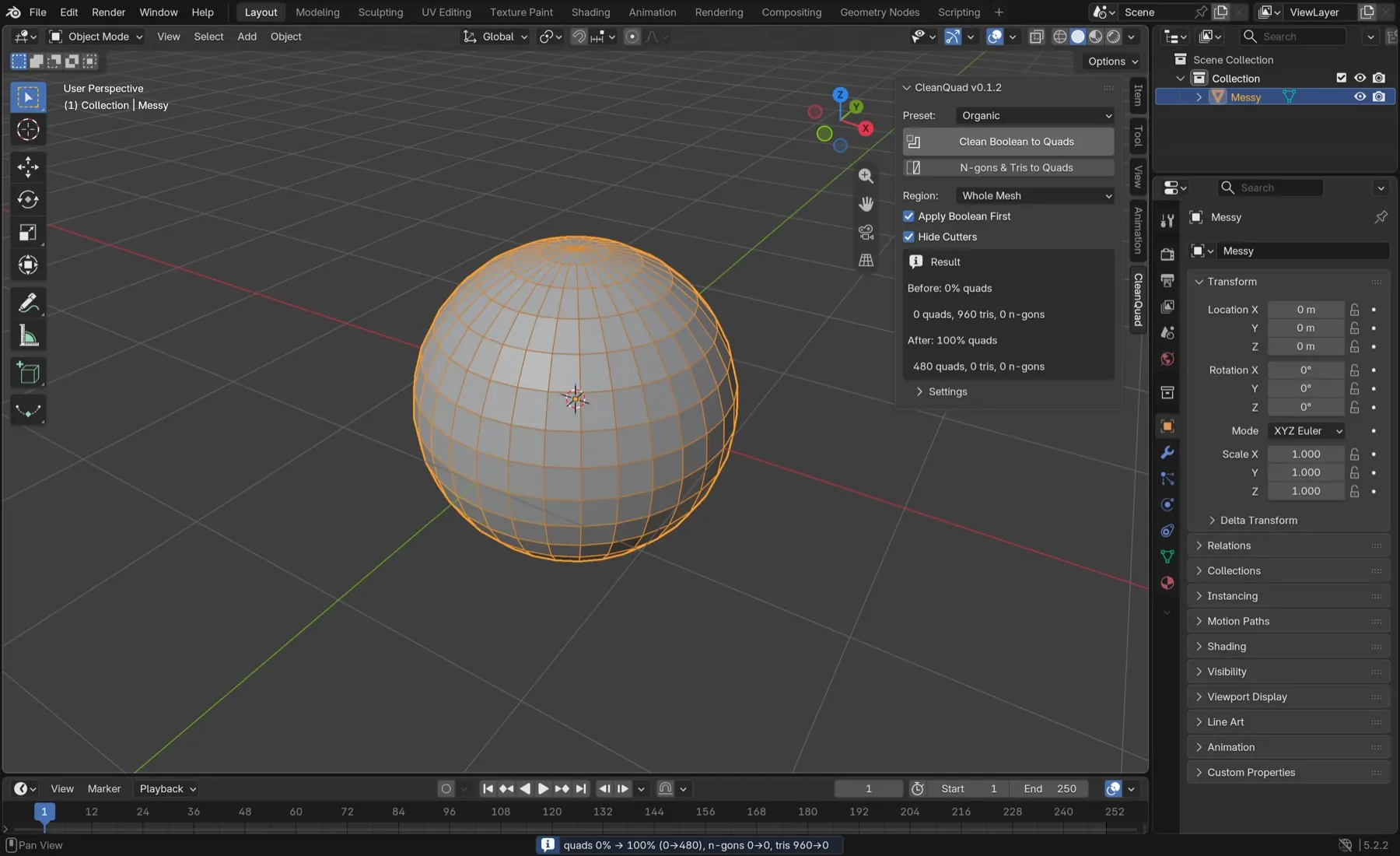
A fully triangulated test sphere with split vertices, Organic and Whole Mesh, went from 0% to 100% quads: its 960 triangles became 480 quads.
A cut over a curved surface keeps some triangles, because CleanQuad keeps the shape first. If you accept a little more movement for fewer triangles, raise Shape Tolerance step by step: 0.001, then 0.002.
Scans, photogrammetry and AI-generated meshes
These are dense triangle meshes with no Boolean. CleanQuad is not a remesher: it pairs the triangles that are there into quads; it does not build new, even topology.
- Use Organic with Whole Mesh to pair triangles into quads where they form good pairs. Expect a mix of quads and triangles on noisy areas.
- On a very dense mesh the run takes longer. Try it on a part first, with a face selection in Edit Mode.
- For clean, even quad topology from a scan or an AI mesh, use a remesher, such as Blender's QuadriFlow or ReQuad, and then CleanQuad for the Boolean cuts you make later.
3D printing
Quads do not matter to a slicer, but a clean cut does. CleanQuad keeps the mesh closed (manifold) and the cut in place. Use the Hard-surface preset and export to STL as usual. If your model is bigger than the printer bed, BedSplit cuts it into parts.
Very small or very large objects
All lengths under Settings are a part of the object's size, so very small and very large objects need no changes. In the tests, a cube and cutter at scale 100 with the Import / CAD preset still came out at 100% quads.
What undo and the run keep
- One undo step.
Ctrl+Z(Cmd+Zon a Mac) undoes the whole run: the Boolean modifier is live again, the cutter is visible again, the mesh is as before. Redo (Ctrl+Shift+Z,Cmd+Shift+Zon a Mac) gives the cleaned result again. - Cutters are hidden, never deleted.
- UV maps, materials, vertex groups and custom normals are kept. On the cut line itself, UVs and weights are what Blender's Boolean made of them. CleanQuad keeps them; it does not repair them.
- Faces away from the cut never change in Auto with a live Boolean. Triangles and n-gons that were in the mesh before the Boolean stay.
- Modifiers below the Boolean stay in the stack and stay on.
- The panel settings live in the scene, so they are saved with the .blend file.
Related
- Panel reference
- Troubleshooting
- Product page: CleanQuad