
CleanQuad panel reference: every option
Layout of the tab
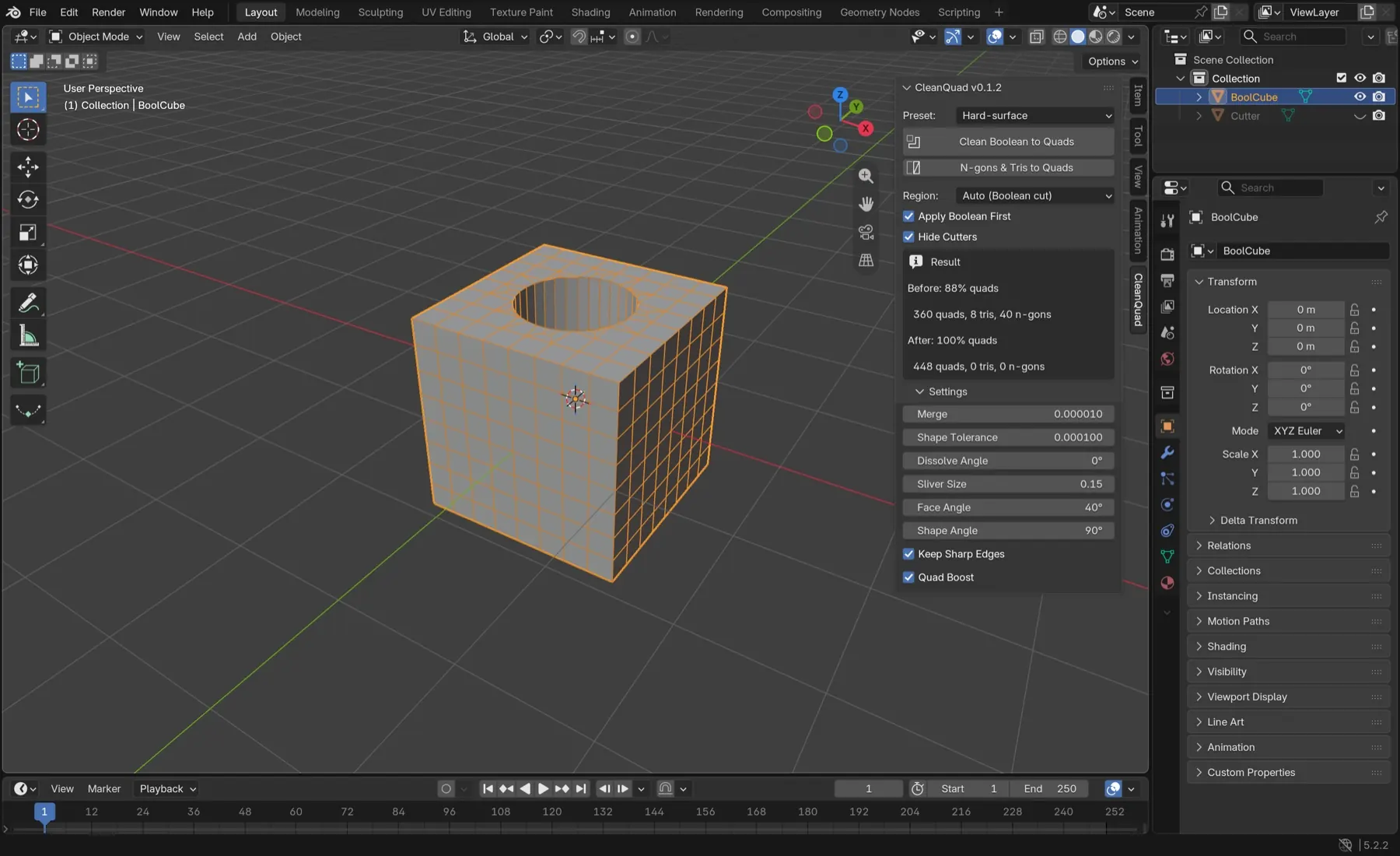
The CleanQuad tab in the 3D viewport sidebar (N) has one panel, CleanQuad v0.1.2. From top to bottom:
| Control | What it does | Default |
|---|---|---|
| Preset | Sets all eight values under Settings at once: Hard-surface, Organic or Import / CAD | Hard-surface |
| Clean Boolean to Quads | The main tool: applies the Boolean, finds the cut and cleans it to quads | – |
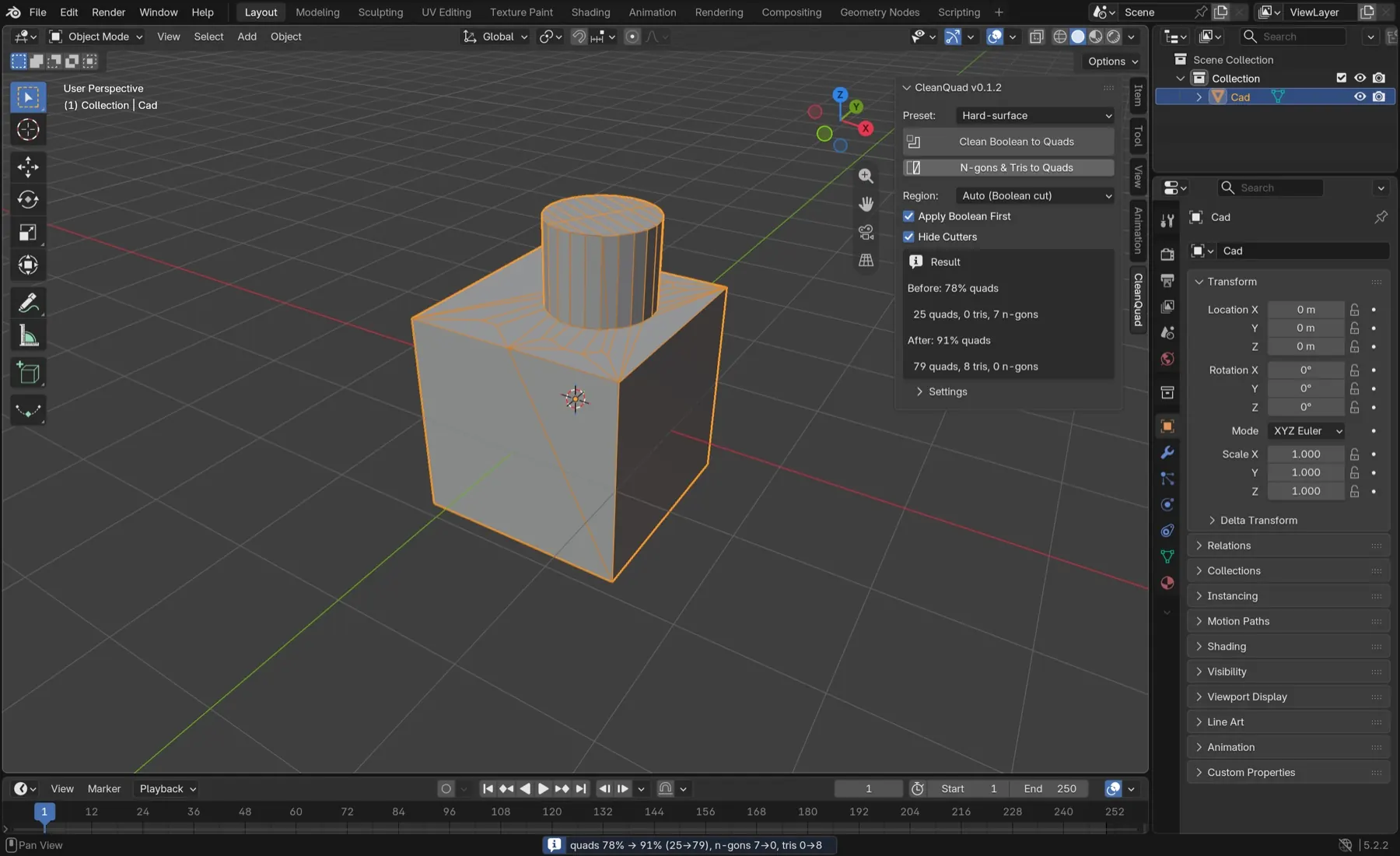
| N-gons & Tris to Quads | Only converts n-gons and triangles to quads, nothing else | – |
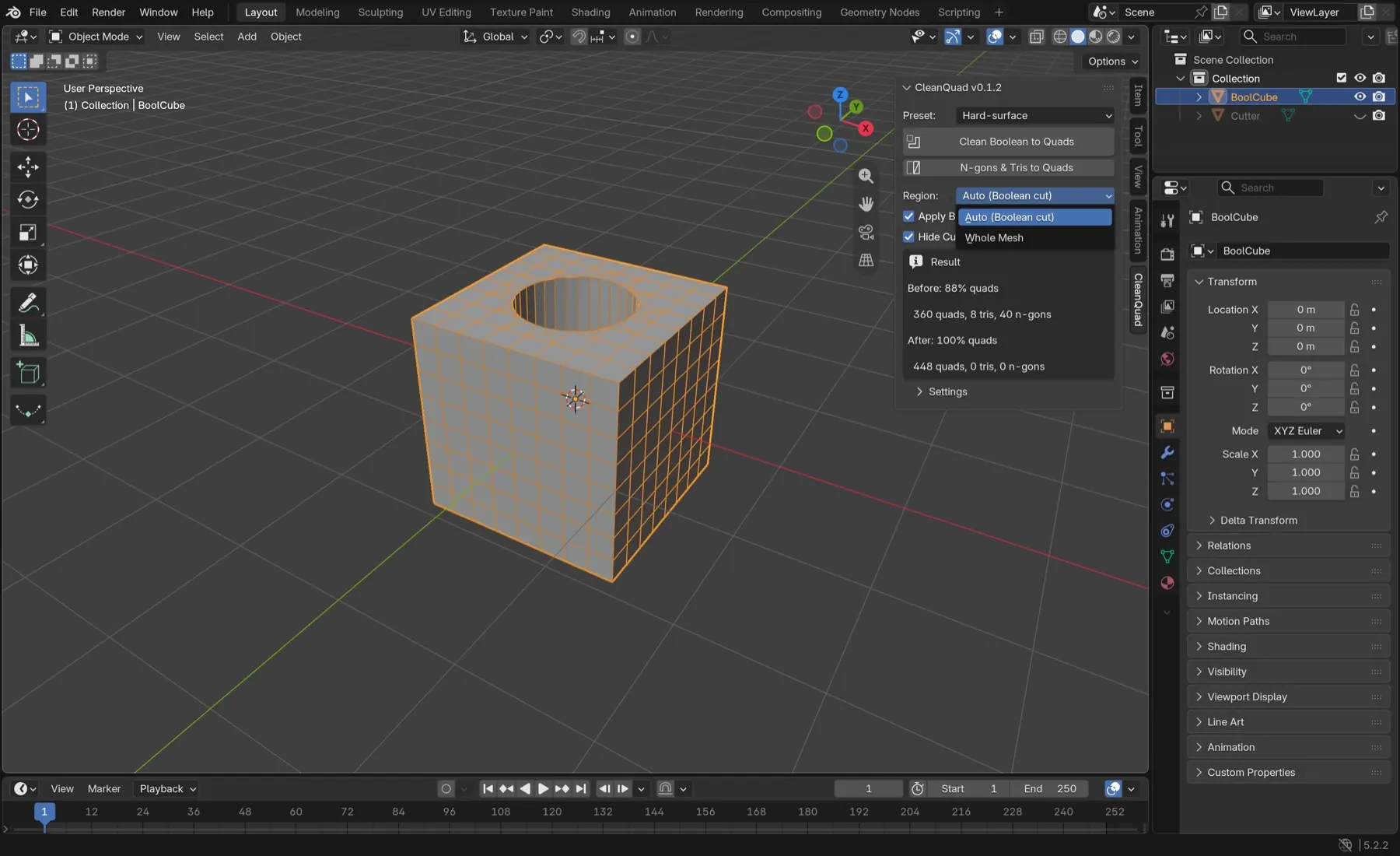
| Region | Which faces are cleaned: Auto (Boolean cut) or Whole Mesh | Auto (Boolean cut) |
| Apply Boolean First | Object Mode: apply live Boolean modifiers before cleaning | On |
| Hide Cutters | Object Mode: hide the cutter objects after their Boolean is applied | On |
| Result | Quad percentage and face counts before and after the last run | Empty |
| Settings | Fold-out with the eight cleanup values | Closed |
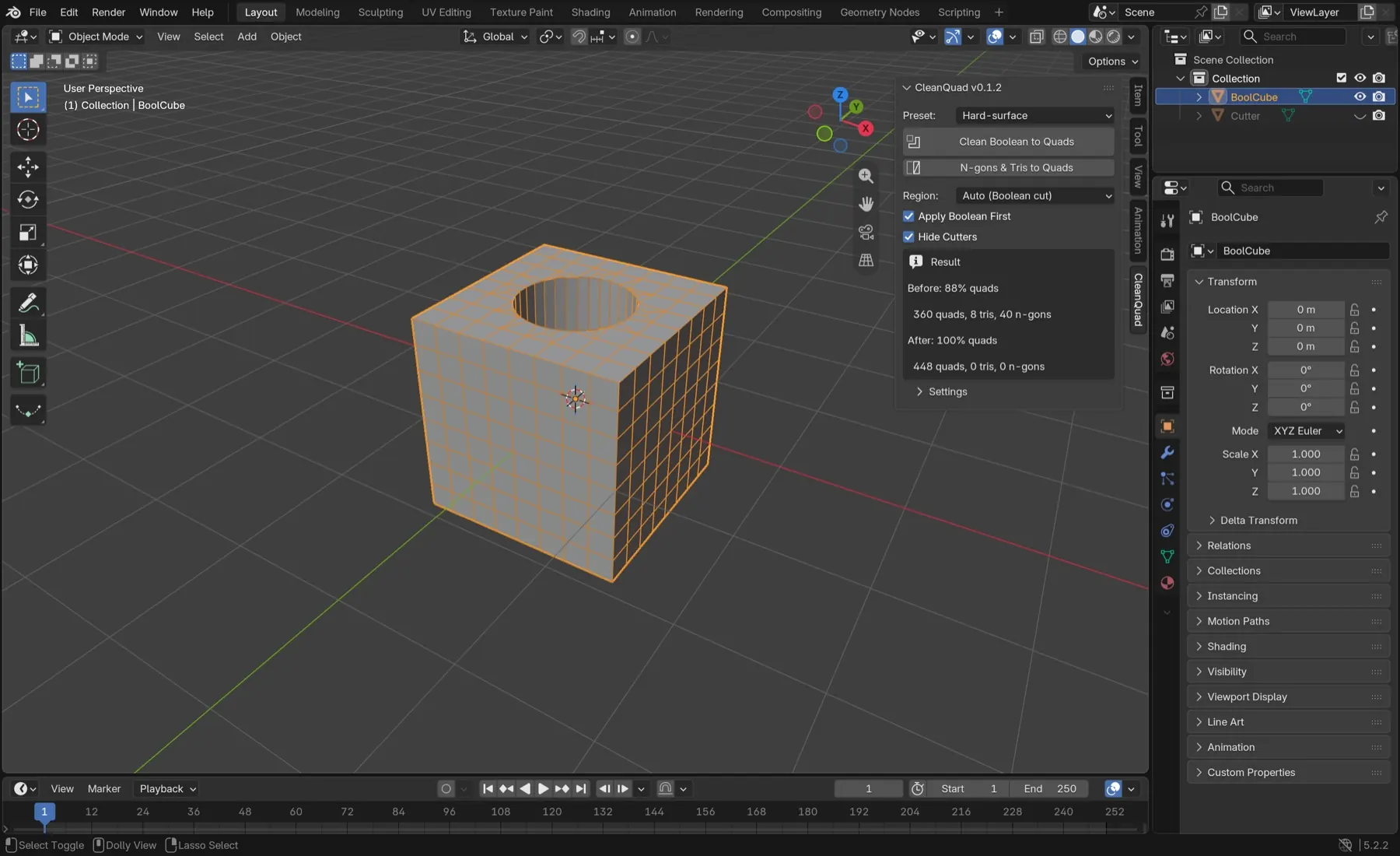
The panel shows in Object Mode and in mesh Edit Mode. Both buttons are greyed out when nothing is selected, when only non-mesh objects are selected, or in any other mode.
Preset
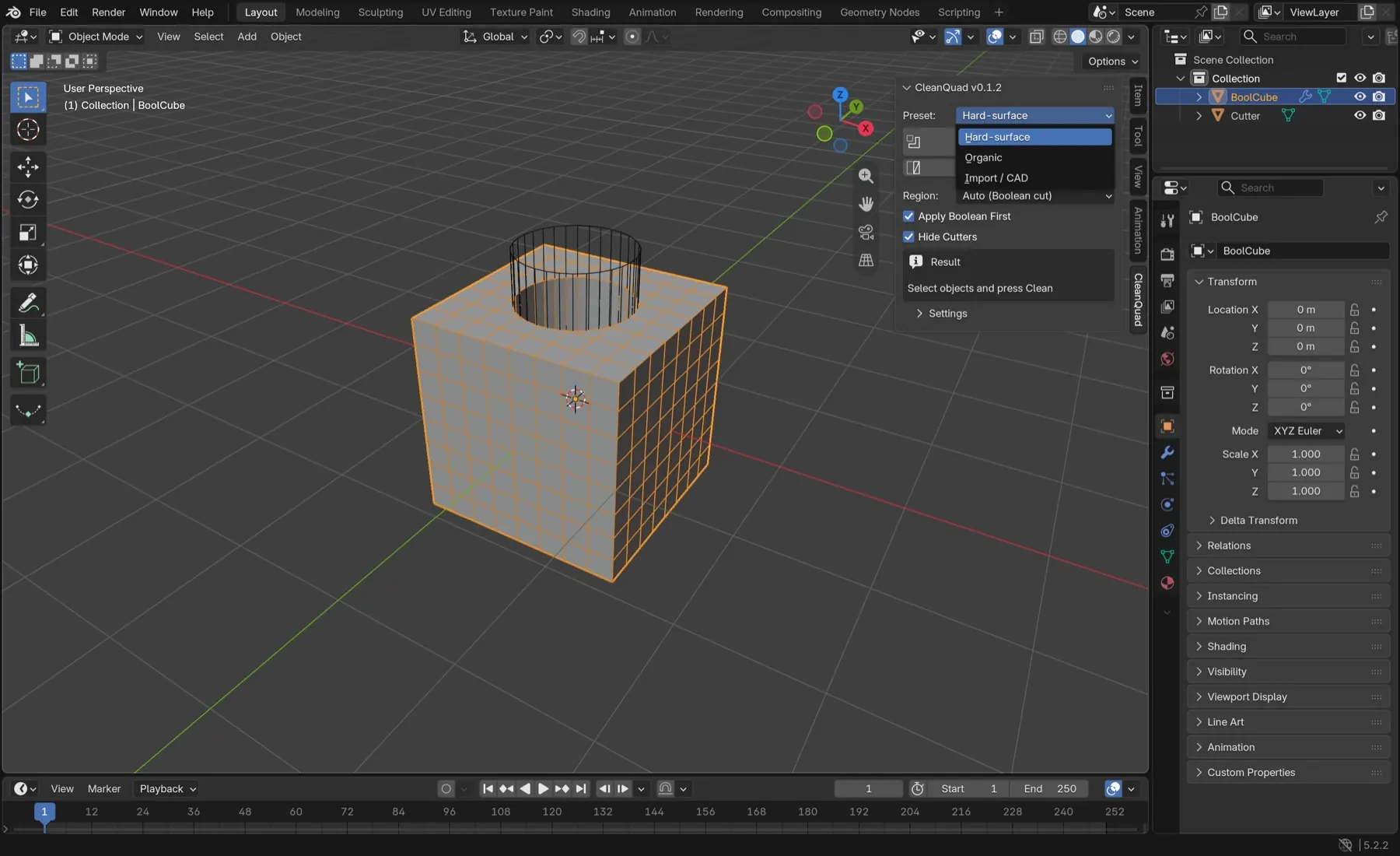
A drop-down with three values: Hard-surface, Organic and Import / CAD. Picking a preset sets all eight values under Settings at once. Picking a preset again, even the one already shown, restores its values after you changed them. Your own changed values are used by the next run until you pick a preset again.
| Value | Hard-surface | Organic | Import / CAD |
|---|---|---|---|
| Merge | 0.00001 | 0.00001 | 0.0001 |
| Shape Tolerance | 0.0001 | 0.001 | 0.0001 |
| Dissolve Angle | 0° | 0° | 3° |
| Sliver Size | 0.15 | 0.12 | 0.15 |
| Face Angle | 40° | 60° | 60° |
| Shape Angle | 90° | 90° | 120° |
| Keep Sharp Edges | On | Off | On |
| Quad Boost | On | On | On |
- Hard-surface (default). For Booleans on hard-surface models: panels, mechanical parts, props. It keeps sharp edges and creases, never joins triangles across a corner, and the surface may move at most 0.0001 of the object's size. Start here.
- Organic. For smooth shapes: characters, sculpted or subdivided bases, rounded props. It joins triangles more freely (Face Angle 60°), ignores Sharp and Seam marks, and lets the surface move up to 0.001 of the object's size. That gives fewer triangles on a cut over a curved surface.
- Import / CAD. For STL, OBJ and STEP exports. A ten times bigger merge distance closes split vertices, Dissolve Angle 3° removes the fan triangulation of flat faces before the quads are built, and Shape Angle 120° accepts the less regular quads CAD shapes need. Often used with Region Whole Mesh.
Clean Boolean to Quads
The big button and the main tool. What it does depends on the mode and on what is selected:
| Situation | What happens |
|---|---|
| Object Mode, object with a live Boolean modifier, Apply Boolean First on | The Boolean and every modifier above it are applied, the cutter is hidden (if Hide Cutters is on), the cut is found from the cutter and cleaned. |
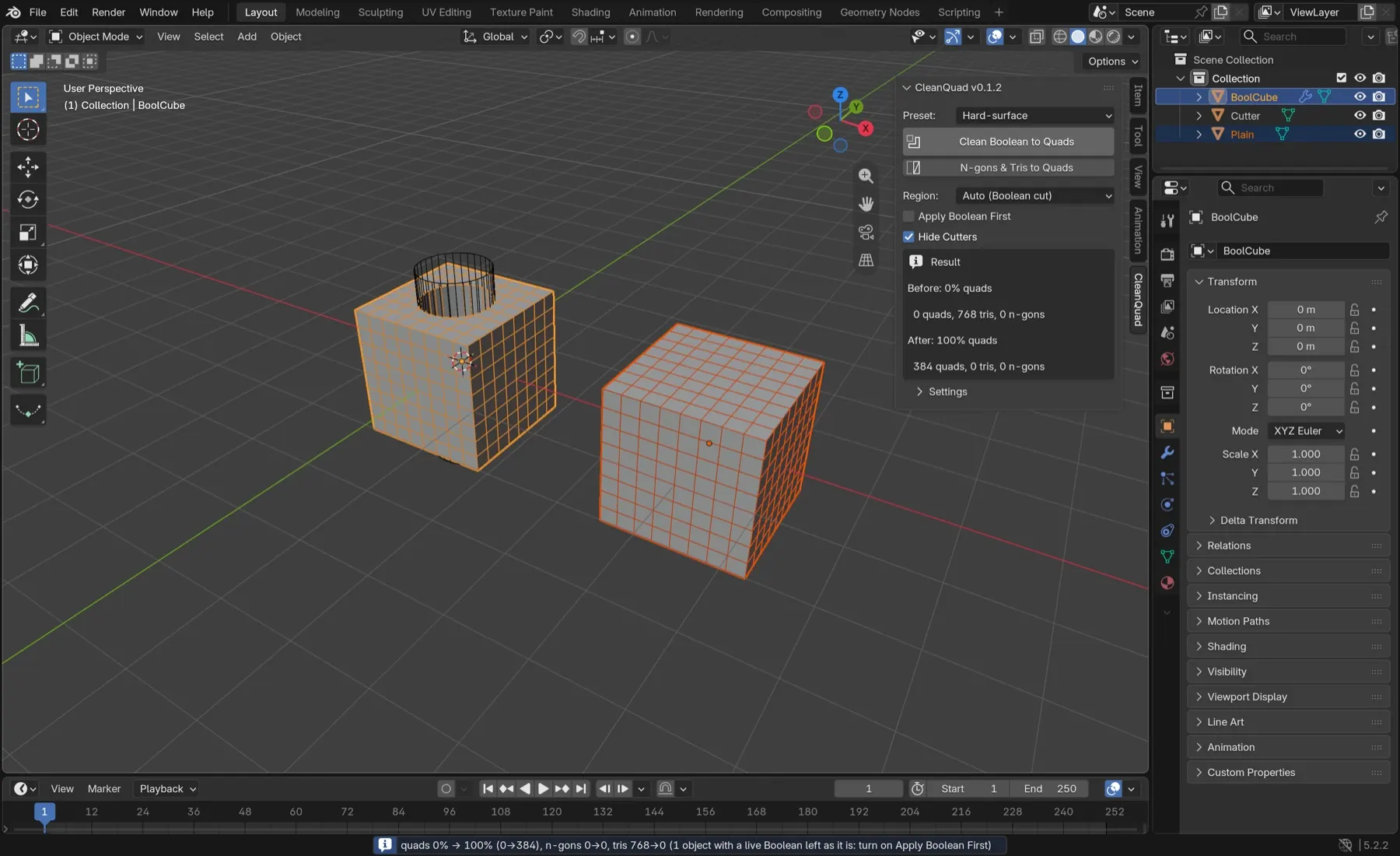
| Object Mode, object with a live Boolean, Apply Boolean First off | The object is left exactly as it is, mesh and modifier. The report says so. |
| Object Mode, object without a Boolean modifier (you applied it yourself, or an imported mesh) | There is no cutter to read the cut from. With Region Auto every triangle and n-gon of the mesh is cleaned, plus one ring of faces around each. With Whole Mesh every visible face. |
| Edit Mode, faces selected | Only the selected faces are cleaned. They stay selected afterwards. |
| Edit Mode, nothing selected | Same as Object Mode without a Boolean: Auto takes the triangles and n-gons, Whole Mesh takes all visible faces. Live Boolean modifiers are not applied in Edit Mode. |
What the clean does to the faces it works on, in this order:
- Merges vertices closer than Merge.
- Collapses slivers: edges shorter than Sliver Size of the longest edge of their faces, where the surface does not move by more than Shape Tolerance. A vertex on a straight piece of the cut slides to the next corner of the cut, a grid vertex slides onto the cut, and a corner of the cut never moves.
- With Dissolve Angle above 0: dissolves flat edges between triangles and n-gons first (for CAD exports).
- Splits the n-gons and joins triangles into quads within Face Angle and Shape Angle.
- With Quad Boost on: a second pass that pairs the triangles still left. It walks a triangle through the quads to its partner, puts a 3-to-1 pattern where three edges of the cut meet one grid edge, and fills flat round caps with a grid, like Grid Fill. This adds a few vertices inside flat faces, never on the cut line.
It never makes a "quad" with a straight corner (really a triangle with a vertex on its side) or a hollow corner, never flips a face, and keeps the triangles and n-gons that were in the mesh before the Boolean. The whole run, on every selected object, is one undo step.
N-gons & Tris to Quads
Turns n-gons and triangles into quads and does nothing else: no merge, no dissolve, no sliver collapse, no Boolean applied. In Edit Mode it works on the face selection; otherwise on the whole mesh of every selected object.
Use it when the topology is already where you want it and you only need the n-gons split into quads, for example a CAD part with n-gon caps. Use Clean Boolean to Quads for anything that came out of a Boolean.
Region
| Value | What it cleans | When to use |
|---|---|---|
| Auto (Boolean cut) (default) | With a live Boolean: only the faces on the cut line, the n-gons the cutter left (the bottom of a blind hole, the top of a boss) and one ring of faces around them. Without a live Boolean: every triangle and n-gon, plus one ring. In Edit Mode a face selection wins. | Almost always. |
| Whole Mesh | Every visible face of the object. Hidden faces (hidden with H in Edit Mode) are left alone. | Imported meshes, triangulated meshes, scans, a messy sphere; or when the cutter did not touch the mesh. |
In Edit Mode the panel shows two info lines under Region: With faces selected: only those faces are cleaned.
Apply Boolean First
Object Mode only, greyed out in Edit Mode. Default: on.
- On: Boolean modifiers are applied before cleaning. If the Boolean is not the first modifier, the modifiers above it are applied with it, because Blender cannot apply a Boolean from the middle of the stack any other way. Modifiers below the last Boolean stay in the stack, and modifiers turned off in the viewport stay too.
- Off: objects that have a live Boolean are skipped and keep their mesh and modifier. Other selected objects, without a Boolean, are still cleaned. Use it when you want to keep a Boolean live and only clean the other objects of the selection.
Hide Cutters
Object Mode only, greyed out in Edit Mode. Default: on.
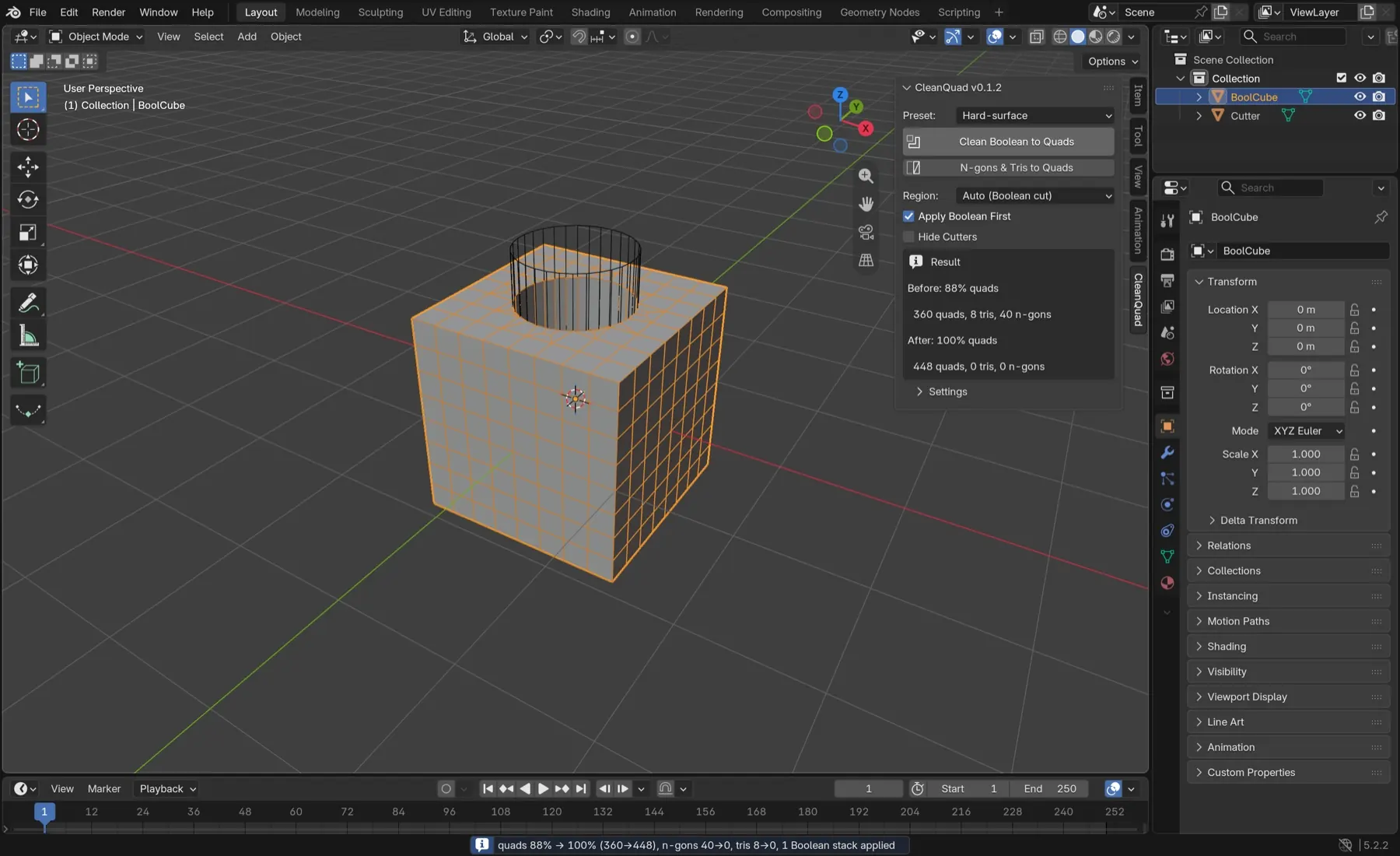
- On: after their Boolean is applied, the cutter objects are hidden in the viewport.
- Off: the cutters stay visible.
Cutters are never deleted. To show a hidden cutter again, click its eye icon in the Outliner.
Result
The Result box shows the last run as two states, each on two lines: Before: 88% quads with 360 quads, 8 tris, 40 n-gons, and After: 100% quads with 448 quads, 0 tris, 0 n-gons. When several objects are cleaned, the counts are the sum of all of them. Before the first run it reads Select objects and press Clean.
The status bar (and the Info editor) carries the full report on one line, for example:
quads 88% → 100% (360→448), n-gons 40→0, tris 8→0, 1 Boolean stack applied
With several objects the line starts with the count, for example 4 objects: quads 49% → 99% (1080→1819), n-gons 120→0, tris 984→10, 3 Boolean stacks applied. Notes on what was skipped and why are added at the end. Every note is listed in troubleshooting.
Settings
Click Settings to open the fold-out. It is closed by default. Lengths are a part of the object's size (the diagonal of its bounding box), so the same values work on a 1 cm part and on a 100 m building. The defaults below are the Hard-surface preset.
| Setting | What it does | Default | Range | When to change it |
|---|---|---|---|---|
| Merge | Merges vertices closer than this part of the object's size. | 0.00001 | 0 to 0.01 | Raise to 0.0001 for STL or OBJ exports with split vertices (the Import / CAD preset does). |
| Shape Tolerance | How far the surface may move, as a part of the object's size, when a sliver is collapsed or a leftover triangle is moved to its pair. Small means the cut keeps its exact shape. | 0.0001 | 0 to 0.01 | Raise to 0.001 (the Organic value) for fewer triangles on a cut over a curved surface, if you accept more movement. |
| Dissolve Angle | 0 keeps the grid around the cut, which is best after a Boolean. Above 0, flat edges between triangles and n-gons under this angle are dissolved first. | 0° | 0° to 30° | 3° for CAD exports with fan-triangulated flat faces (Import / CAD preset). Keep 0 after a Boolean on a grid. |
| Sliver Size | An edge shorter than this part of the longest edge of its faces counts as a sliver and is collapsed, if that does not move the surface. 0 turns it off. | 0.15 | 0 to 0.4 | Lower it if small real details on the cut get merged; 0 keeps every vertex. |
| Face Angle | The largest angle between two triangles that may be joined into a quad. | 40° | 0° to 180° | Higher (60°) on smooth, curved surfaces. Keep 40° to never join across a hard-surface corner. |
| Shape Angle | How far a new quad may differ from a rectangle and still be accepted. | 90° | 0° to 180° | Higher (120°, the CAD preset) accepts less regular quads. |
| Keep Sharp Edges | Never dissolves or joins across edges marked Sharp or Seam. | On | On or off | Off for organic meshes (the Organic preset). |
| Quad Boost | Second pass: pairs the leftover triangles, uses 3-to-1 patterns and grid-fills flat round caps. Adds a few vertices inside flat faces, never on the cut line. | On | On or off | Off if you want no new vertices at all; then more triangles stay. |
The panel settings live in the scene, so they are saved with the .blend file.
Related
- Workflows: which settings to use for which kind of mesh.
- Troubleshooting: messages, leftover triangles and other surprises.